Back Office: Customers - Membership
- Sign into the Back Office and select a Store.
- On the left-side Navigation Panel, click Customers then Membership.
- The Membership page appears, containing tabs for Type (Default), Plan and Account. All three tabs will have some similar functionality:
Type
Plan
Account
Type
Displays a table containing the added membership types, with the following columns: Date, Type, Description, and Actions.
- Actions
- Edit (pencil) – The Update Membership Type pane appears. See Step 2) below.
- Delete (trash can) – The Delete pop-up appears, with buttons to Delete or Cancel / X Close. If Delete is selected, the Type will be deleted. If either of the other two options are selected, the Type will remain.
- To create a new Membership Type click + Membership Type at the upper-right – or Edit an existing Membership Type by clicking the corresponding Edit (pencil) button of an existing Type.
- The New/Update Membership Type pane appears, with the following fields:
- Type – (Mandatory) Enter the name of the Type. It must be a unique name (not identical to an existing Type) that cannot exceed 25 characters.
- Price Level – (Mandatory) Select the price level of the type, with the default level auto-selected. Only one option can be selected.
- Description – Enter a description of the Type (if necessary). No character limit.
- When finished creating (or updating) the Type, click Save (or Update).
- Save will be disabled by default until both mandatory fields are filled in, while
- Update will be disabled until an update is made.
Plan
Displays a table containing the membership plans, with the following columns: Date, Name, Type, Tax Exemption, Allowance, Allowance Period, and Actions.
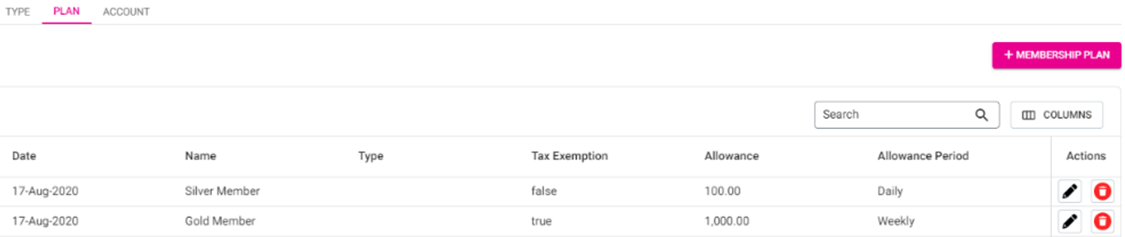
- Actions
- Edit (pencil) – The Update Membership Plan pane appears. See Step 2) below.
- Delete (trash can) – The Delete pop-up appears, with buttons to Delete or Cancel / X Close. If Delete is selected, the Plan will be deleted. If either of the other two options are selected, the Plan will remain.
- To create a new Membership Plan click + Membership Plan at the upper-right – or Edit an existing Membership Plan by clicking the corresponding Edit (pencil) button of an existing Plan.
- The New/Update Membership Plan pane appears, with the following fields:
- Name – (Mandatory) Enter the name of the plan. It cannot exceed 25 characters.
- Type – (Mandatory) Select the Type from the list of existing Types (previous tab).
- Allowance – Enter the value of the allowance for the plan (numbers only).
- Allowance Period – (Mandatory) Select the allowance period for the plan from the dropdown.
- Monthly – The plan will have a monthly allowance period, with the Allowance amount being charged monthly.
- Quarterly – The plan will have a quarterly allowance period, with the Allowance amount being charged quarterly.
- Half-Yearly – The plan will have a 6-month allowance period, with the Allowance amount being charged every 6 months.
- Yearly – The plan will have a 12-month allowance period, with the Allowance amount being charged every 12 months.
- Tax Exemption – If Enabled (set to YES), the Tax Exemption will be included for the membership plan. If disabled, there will be no Tax Exemption.
- Allowance Overdraft – The additional or extra amount more than the allowance amount can be used for the respective membership plan. Only numbers can be entered and no limits of digits in this field.
- When finished creating (or updating) the Type, click Save (or Update).
- Save will be disabled by default until both mandatory fields are filled in, while
- Update will be disabled until an update is made.
Account
Displays a table containing the membership accounts, with the following columns: Customer, Card Number, Membership Plan, Balance Amount, and Actions.
- Actions
- Edit (pencil) – The Update Membership Account pane appears. See Step 2 below.
- Delete (trash can) – The Delete pop-up appears, with buttons to Delete or Cancel / X Close. If Delete is selected, the Account will be deleted. If either of the other two options are selected, the Account will remain.
- To create a new Membership Plan click + Membership Plan at the upper-right – or Edit an existing Membership Plan by clicking the corresponding Edit (pencil) button of an existing Plan.
- The New/Update Membership Account pane appears, with the following fields:
- Customer – (Mandatory) Select a Customer from the dropdown list of all added customers.
- Membership Plan – (Mandatory) Select a Plan from the dropdown list of all added plans.
- Card Number – (Mandatory) Enter the Card Number (letters and numbers allowed, cannot be more than 25 characters).
- Description – Enter a description of the Membership Account, if necessary.
- Issue Date – Select the Issue Date of the Account (calendar), which will be enabled after selecting the Membership Plan.
- Expiry Date – The expiration Date will auto-populate based on the selected Issue Date and the Allowance Period of the selected Membership Plan.
- Balance Amount – The Balance Amount will auto-populate based on the selected Membership Plan, and cannot be edited.
- Add Members – (Mandatory) Select one or more Members from the dropdown. The selected members cannot have another Membership Account within the Store.
- When finished creating (or updating) the Account, click Save (or Update).
- Save will be disabled by default until both mandatory fields are filled in, while
- Update will be disabled until an update is made.