Back Office: EMV Payment Settings
Sign into the Back Office.
On the left-side Navigation Panel, click Settings. The Settings page appears.
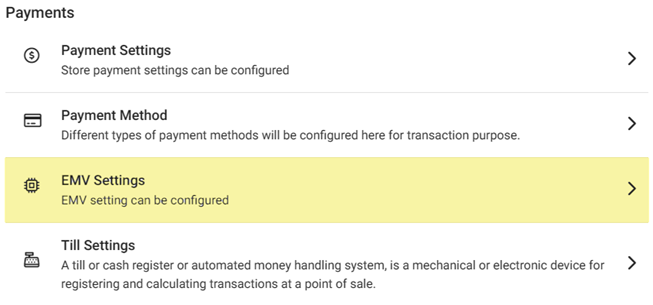
Under Payments click EMV Settings. The EMV Settings page appears.
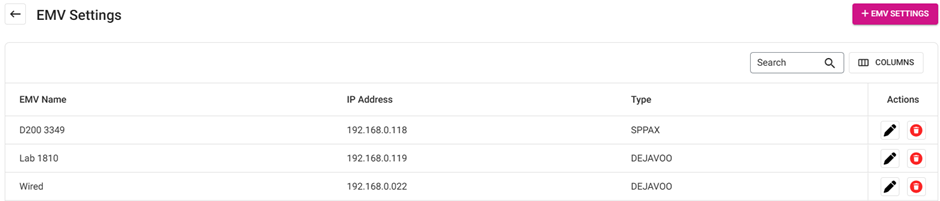
If no EMVs have been added, the message ‘EMV Settings not found’ appears.
Action – Actions to perform on an existing EMV Setting. Click Edit (pencil) to view the EMV Settings and update accordingly - or Delete (trash can) to delete it.
Note: The Type and supporting fields of an existing EMV cannot be edited.
Click + EMV Setting to create a new EMV. The New EMV Setting pane appears.
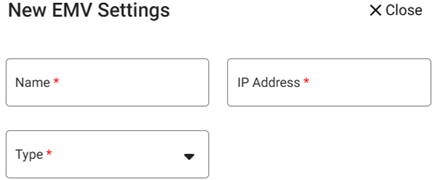
Name – (Mandatory) Enter the name in the field. It will be displayed in POS and can’t be more than 25 characters.
IP Address – (Mandatory) Enter the IP Address in the field. Accepts letters and numbers.
Type – Select an option from the dropdown (previously configured list). Additional fields will appear based on the selection.
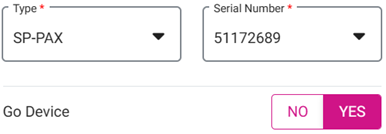
SP-PAX – Select a Serial Number from the dropdown. Based on this selection only SPPAX will be configured with POS. Select whether it’s a Go Device from the toggle (Enabled [YES] or Disabled [NO]).
OPTOMANY, INGENICO, or CLOVER – The Port number will be configured and set by default. Click ▲ or ▼ to increase or decrease the value by 1.

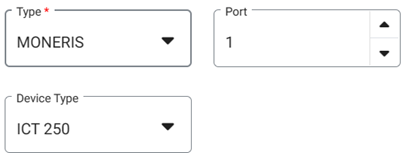
MONERIS – The Port number will be configured and set by default. Click ▲ or ▼ to increase or decrease the value by 1. Then select the Device Type from the dropdown.
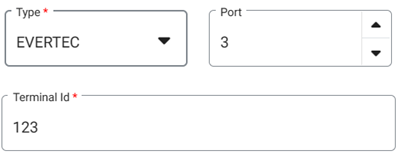
EVERTEC – Update the Port number and Terminal ID for the Evertec type.
DEJAVOO – Enter the Auth Key, TPN and Token.

Click Save to create the new EMV Setting and return to the main EMV Settings page. It will be added in POS and appear in the EMV Setting table.
Click X Close at the top right (or Cancel at the bottom left) to cancel creating the new EMV and return to the main EMV Settings page.