Back Office: User Management - Editing an Existing User

Back Office: User Management - Editing an Existing User

  1. Sign into the Back Office and select a Store.

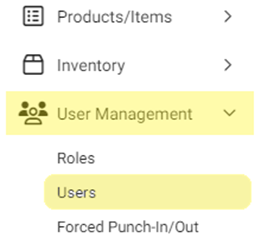
  2. On the left-side Navigation Panel, click User Management then Users.

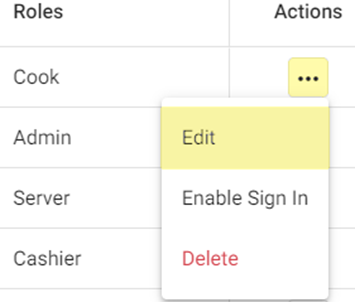
  3. On the Users screen, under the Actions column click the ••• for a User then click Edit.
    1. When adding or editing a User, the following fields will be MandatoryNameLast NameE-MailLanguagePOS Initial ScreenPINPassword, and Role(s).


  4. Enter any needed updates for the user. For more information, see the Creating a New User article.

  5. Click Update at the top-right. You are returned to the main Users page and the banner User Updated Successfully appears at the top-right.

    • Related Articles

    • Retail Back Office: User Management - Editing an Existing User

      Navigation: Sign into the Back Office. for your Retail Store, then select User Management > Users. On the Users screen: identify the User to be updated and under the Actions column click the corresponding three dots ••• then select Edit. When adding ...
    • Back Office: User Role Management

      Sign into the Back Office and select a Store. On the left-side Navigation Panel, click User Management then select Roles. On the Roles page, click + New Role at the top-right. The New Role pane appears. You can update a Role by clicking the ...
    • Retail Back Office: User Management - Roles

      Navigation: Sign into the Back Office for your Retail Store, then select User Management > Roles The Roles page appears, which displays a table of the currently existing Roles within this Retail Store, with the following columns: Create a New Role or ...
    • Back Office: User Management - Terminating and Deleting an Existing User

      Sign into the Back Office. On the left-side Navigation Panel, click User Management then Users. On the Users screen, under the Actions column click the corresponding three dots (•••) for a User then click Edit. Scroll down to Termination Settings ...
    • Back Office: User Management - Creating a New User

      Sign into the Back Office. On the left-side Navigation Panel, click User Management then Users. On the Users screen: click + New User. The New User screen appears. When adding or editing a User, the following fields will be Mandatory: Name, Last ...