Back Office: User Management - Forced Punch In / Out
Sign into the Back Office and select a Store.
On the left-side Navigation Panel, click User Management then Forced Punch-In/Out.
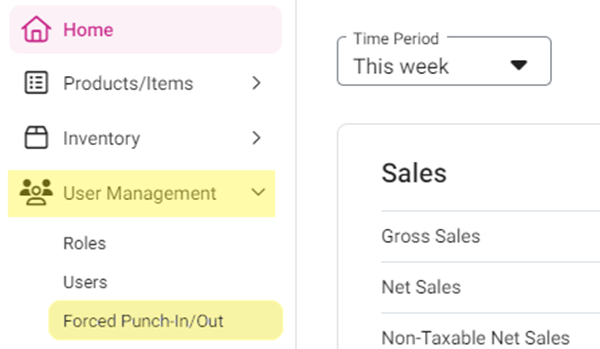
On the Forced Punch-In/Out page:
To Log a New Punch In/Out Shift:
Click + Time Event. You’re taken to the Time Event page.
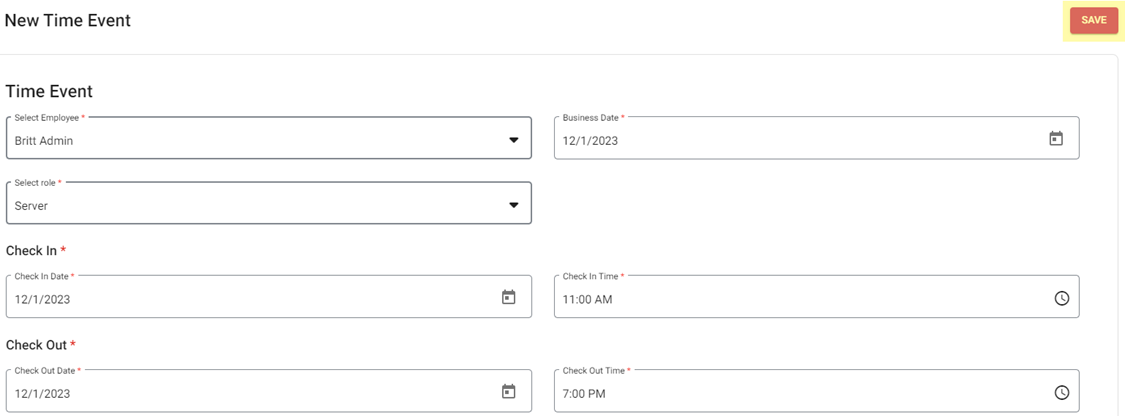
Under the Time Event section:
Select the Employee from the dropdown. You can search for the employee to quickly find them.
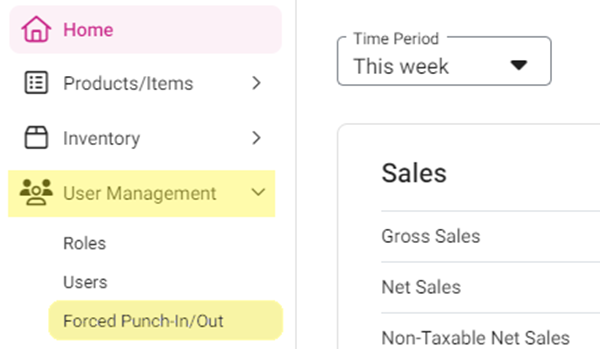
Select the Business Date (calendar view).
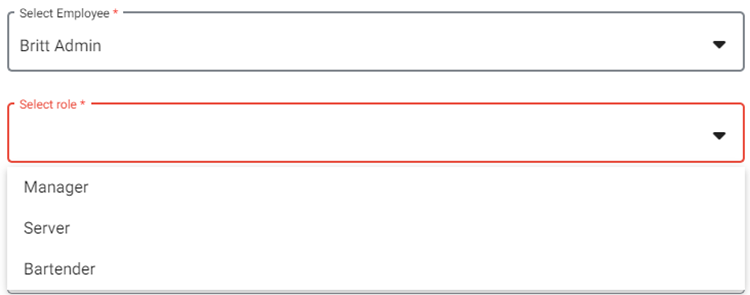
Select the Role (dropdown options are based on the roles available to the selected Employee).
Check In – select the Check In Date (Calendar view) and Check In Time (clock view).
Note: You cannot select a future date.

Check Out – select the Check Out Date (Calendar view) and Check Out Time (clock view).

When everything on the new Time Event is set, click Save at the top-right.
View the saved Time Event: select the Employee and Date at the top, then click Apply. The Time Event appears under Time Clock Log.
Tip: You can view any Employee’s Time Clock Log on a specific day by selecting their Name and the Date, then clicking Apply.
