Factor4 Integration
Introduction
This document provides an overview of the Factor4 Direct API Integration with the POS and Back Office systems. The integration enables seamless processing of Factor4 Gift Card transactions, including card issuance, balance inquiry, recharge, payments, voids, and refunds.
The integration introduces configuration through the Integration Hub, simplified payment method setup, and comprehensive reporting capabilities in the Back Office. It also ensures consistency with existing POS workflows while enhancing functionality with direct API communication.
With this enhanced integration, you can perform Factor4 transactions either by manually entering card details or by using supported card reader devices (such as Reader or Magtek) for swipe operations. The solution ensures improved flexibility, real-time processing, and a streamlined user experience across supported platforms (Web, Android, and iOS).
This guide outlines the configuration, workflows, supported features, and operational impacts of the Factor4 Direct API Integration across POS, Back Office, and reporting modules.
Want to know more about SPPAX Factor 4? Check out the Knowledge Article for complete details.
Platforms Supported
Platform / Application | Support Payment Modes / Readers |
Cloud POS (Android) | Reader, Magtek Reader, Manual Entry |
Cloud POS (iOS) | Magtek Reader, Manual Entry |
Go (PAX & Evertec) | Manual Entry |
Mobile | Reader, Manual Entry |
POS (Browser) | Manual Entry |
Note
- Merchants can deactivate Factor4 cards directly through the Factor4 portal. No additional action is required within the POS or Back Office system for card deactivation.
- Important: The Factor4 Direct API Integration feature is available only for US-based stores. Stores outside the United States are not currently supported.
Back Office Configuration
Subscribe to Factor4
Navigation: Log into the BO for your Store. Select Integration Hub then Browse and Subscribe Integrations
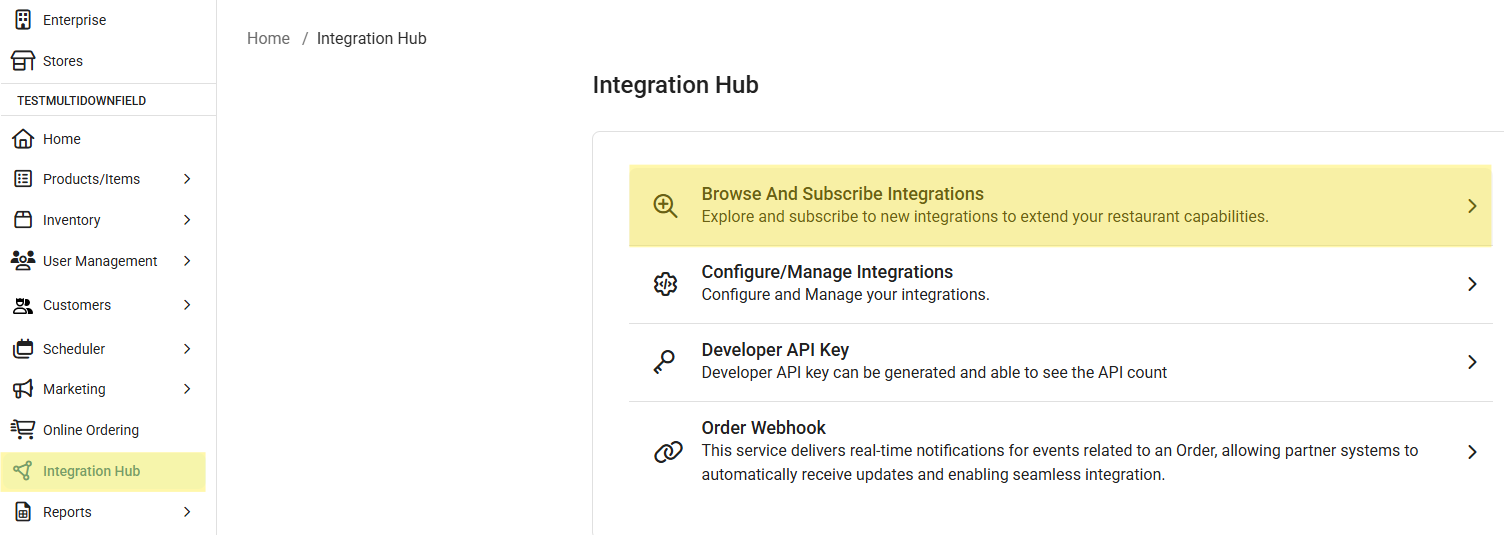
- On the Integrations page: under Contents on the left, select Gift Cards Loyalty then for the Factor4 option click Add.
- On the Add Integration page for Factor4, click the terms and conditions box at the bottom followed by clicking Confirm at the upper-right.
- You're taken to the Current Integrations page, and the Factor4 configuration screen automatically pops-up. Enter your Factor4 credentials: Client ID, Location ID, and Terminal ID, followed by your Factor4 Username and Password. When ready click Save at the bottom-right of the window.
- Once Factor4 payment is added as an integration, you can manage Factor4 or other subscribed integrations on the Current Integrations page. To update your Factor4 or other integration information, under Actions click the corresponding Configure (gear) button.
Add Factor4 Payment Method
Navigation: Log into Back Office for your Store that has Factor4 integrated. Select Settings > Payment Methods.
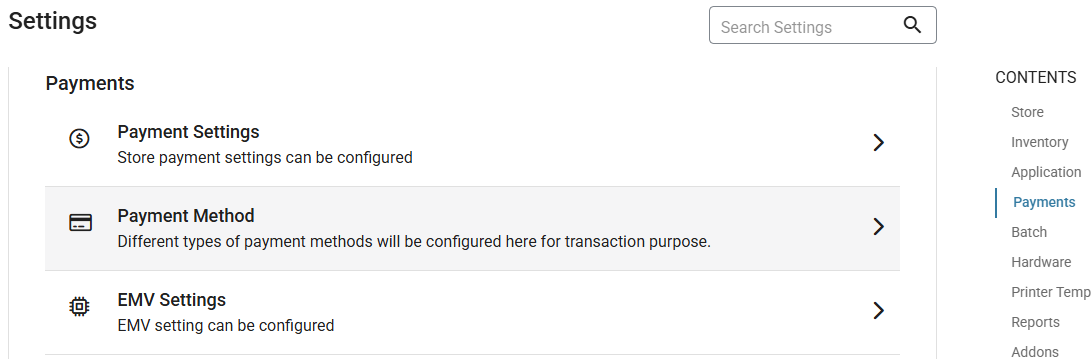
For more information on Payment Method creation, see the Knowledge Article.
When creating the new Payment Method:
- Enter the Name as Factor4 (or another preferred name of your choosing).
- Then for the Payment Type dropdown select Factor4.
- Select from the additional options, as needed.
- When ready to create the Factor4 payment, click Save at the bottom-right.
Implementation in POS
POS Settings
Navigation: Login into POS. Select Operations > POS Settings
For the Default Gift Card Type select Factor 4.
- The Factor4 option appears under the Default Gift card Type section once new Factor4 payment method created in BO.
- To use a Factor4 Gift Card, make sure it is added to the Integration Hub before enabling it here.
- If PAX payment with Factor 4 option is created in Back Office, the Factor 4 SPPAX toggle will also appear.
Factor4 Card Issuance
Navigation: Login into POS. Select Check Options, then the Gift Card tab.
Under the Gift Card tab, the default appearing ttab will be based on Default Gift Card Type field selection under POS Settings. So once Factor 4 is selected, then the Factor 4 tab will automatically appear by default.
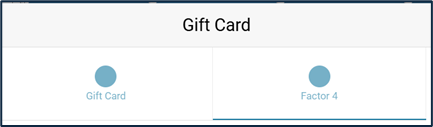
- If Factor 4 was selected, then the Factor4 card can be used or recharged by manually entering card details or swiping the card in Reader or MagTek devices.
- If no option selected, then the Gift Card tab will be selected by default.
Factor4 Card Manual Entry
On POS, navigate to Gift Card then select Factor 4. Click the Card Number field to bring up the number pad for manual card entry. Once a valid Card Number is entered, the Factor4 card details will be displayed in the POS screen.
- Note: When purchasing or reloading a Factor4 gift card, the POS will automatically trigger the Inquiry API before adding the line item.
The balance of the Factor4 card will appear in POS.
New Card Issuance
If a card is newly issued, the starting balance will be $0.00. By entering an amount in the Charge Amount section, the system will update the Recurring Balance accordingly.
Existing Card Recharge
If the Card already has a balance (example $93.03), and the customer wants to add more funds (example $20)
- Enter $20.00 as the Charge Amount and the Recurring Balance will update to $113.03.
- By clicking Done, the system will recharge the $20.00 to the existing Balance, updating it from $93.03 to $113.03. The confirmation message 'Recharge success' appears.
- Note: If is issuing a Factor4 card for the first time and encountering an error even after multiple attempts, then review the credentials configured in the Back Office. If the issue persists, then contact Factor4 Support for further analysis.
- Factor4 cards can be loaded or topped up using either Cash or Credit Card. The amount to be added will appear on the POS screen, like how a menu item is added to a check.
- Void Recharge - Before completing payment, click X to the left of the Factor4 line item to void the Recharge amount. Once it is voided the amount will be revised on the Gift Card.
- Click Payment then choose a Payment Method to complete payment.
- The Tip screen appears as per BO settings. After providing tips, the Digital Card screen appears to provide card details manually or swipe a credit card in the device.
- Note: The same recharge card cannot be used for payment.
- After payment completion, the Receipt page appears. On the Digital Receipt screen, select whether the Receipt / Bill needs is to be sent to SMS, Email or Print then press Send Receipt.
- After selecting a Receipt option, it will be sent based on the selection.
Factor4 Card Swipe in Reader Devices
Hardware Settings
Navigation: Login to POS. Select Operations > Hardware Settings
- To use a Reader device for Factor4 recharge or sale, the Card Reader must be connected as displayed under the Hardware Settings tab.
- The device names will be displayed under Select USB Card Reader/Select A Bluetooth Card Reader. When selecting the specific device in POS, the device will be paired, and the checkmark and Disconnect button will be displayed.
Gift Card Options
Navigation: Login to POS. Select Check Option > Gift Card
On POS, navigate to Gift Card and select Factor4.
- Swipe the card in the reader device. Once the customer enters a valid card, the Factor4 card details will be displayed on the POS screen.
- Now users can process the payment/ card issue/ recharge in Reader / Magtek devices.
- If the card is newly issued, the beginning balance will be $0.00. By entering an amount in the Charge Amount section, the system will update the recurring balance accordingly.
- To disconnect the device from POS, click Disconnect.
Note:
- If the Factor4 Card (GC) line item is removed from the Check, the system will reverse the Balance amount. The card will not be issued or loaded with the entered amount (e.g., $20.00), and the Balance will remain unchanged at the current value.
- Surcharge, Service Charge, and Dual Price will not apply to Factor 4, similar to cash transactions.
Sales
- In POS, start an Order then click Payment.
- On the Payment page, select Factor4.
- The Tip screen appears, where the customer enters aTip for the sale, then click on Manual or Process Payment.
- If Manual is selected, the Digital Card screen appears where the Factor4 card details can be entered manually to complete payment.
- If Process Payment is selected, the Digital Card screen appears where the Factor4 card details can be swiped in the reader devices to complete payment.
- If an incorrect number is entered, clear the card number section by clicking the Clear icon.
- If an invalid Factor4 card number is entered, Invalid card number alert pop-up will appear.
- Once Factor4 payment is completed, the Receipt screen appears.
- On the Digital Receipt screen, choose whether the Receipt/Bill is to be sent to SMS, Email or Print, then press Send Receipt.
- After choosing a Receipt option, it will be sent based on the selection, and the Order screen appears.
Note:
- The same card cannot be used for payment.
- If a Menu Item was placed for $10 and customer has a Factor4 card with just a $5 balance, then payment is taken for $5 and the message 'Only $5 Amount has been Redeemed. Not sufficient Balance in the Card' appears. The Tip will be removed when the Card Balance is less than Balance Due. If there is a $0 balance on the Factor4 card when payment is initiated, then the Insufficient Balance message appears.
- Factor4 checks will not be displayed on Batch screen similar to Gift Card payment.
- Refund also not applicable for same Fator4 card using new Factor4 payment.
Receipt Impacts from Factor4
Front End Receipt
When payment is completed using a Factor4 card, the Net Amount paid appears as the Factor 4 line item below the Total.
Merchant Copy and Customer Copy
Factor4 card details appear as a separate line item (with just the last four digits appearing).
Reprint
Note: The Factor4 balance appears at the bottom for MC and CC receipts.
Void
Items can be voided after payment has been completed. The Factor4 transaction on the Payment screen must be deleted, and the full payment will be voided. Partial void is not possible. All payments on the check must be deleted to void. Partial payment can be voided.
Void a Closed Check
- After closing the check, it will be available under the Closed tab. Reopen the check then select Void. The Payment page is displayed, where the message ‘Payment made on this check. Kindly delete the payment to void the menu item payment’ appears. Press Done.
- Select the Factor4 transaction then click Delete. Now the transaction will be deleted.
Void a Check Sent to The Kitchen
- If the Order has already been sent to the Kitchen, press Void. A Void Reason pop-up appears containing Reasons previously defined in BO. Select any one of pre-defined Reasons or manually type a Void Reason. After providing the Void Reason then pressing Add, the Menu Item(s) will be voided.
Remove an Item From an Unpaid Order
- If a customer would like to remove an item from an unpaid order, press Void. The message ‘All orders are voided’ appears and the Menu Items on the check will be voided.
Notes
- To purchase or reload a Factor4 gift card, add the Line Item and then pay the Check along with the other items.
- Once the check is closed and moved to the Closed status, user can reopen it. If user wants to void menu items in the check, then delete the respective Factor4 payment for the menu items.
- The Factor4 gift card top-up line item cannot be voided once the payment is completed.
- If payment of the check is completed using the Factor4 gift card then the user wants to void the check, click Delete button on the POS Payment page. The amount will then be credited back to the same Factor4 card used for the original payment.
- To process a Void, the Factor4 Void API can be used within 24 hours.
Void Merchant Copy and Customer Copy
Refund
Navigation: Select Operation > Refund
Once close day is performed for the store, then Checks completed using Factor4 cards will be available on the Refund screen. You cannot refund the amount to a Factor4 card using the new Factor4 payment method. After refund is completed for the check or menu item via other payment method (Ex: Cash), the same amount can be reloaded onto a Factor4 gift card in Gift card Check option using that payment method (Ex: Cash) used for refund.
- A sale was placed and performed Close Day, then the customer wants a refund on the payment.
- Navigate to the Refund screen. Enter the Check’s Date and/or Check Number then press Search, and it will be displayed.
- Select a Check then press Refund. The Refund pop-up appears, which displays Payment Types (except Factor4). The Check Amount to be refunded will be displayed which can be edited. You can update the amount using number pad until it reaches the Check Amount.
- You must provide a Reason for the Refund. If a Reason was not provided, pop-up ‘Provide reason for Refund’ will be displayed.
- After providing a Reason, select the Payment Method. The message ‘Do user want to refund? Yes or No’ appears.
- If Yes, the Refund Success confirmation pop-up appears. The amount will be refunded by cash or card using payment method.
- If No, user remain on the same screen.
Refund Without Receipt
If Refund Without Receipt is selected
- The Refund pop-up appears. All Payment Types are displayed (except Factor4).
- You must provide a Reason. If one isn't provided, the ‘Provide reason for Refund’ message appears.
- The amount to be refunded will not be displayed on the pop-up. The amount has to be manually entered.
- After providing the Reason, the message ‘Do user want to refund?’ appears with Yes or No options.
- If Yes, then payment will be refunded.
- If No, you're reverted to the previous screen.
- For Payment Method:
- If Cash is selected, the Refund Success message pops up.
- If Card Payment such as PAX is selected, the Card screen appears where user can manually enter the Card details - or Swipe the Card. The amount will be refunded to the card, and the Refund Success message pops up.
Refund Menu Item
If Refund Menu Item is selected, you can select the Item which the customer wants a refund on the amount.
- After selecting the Menu Item, then select Refund Check or Refund Item. The Refund pop-up will be displayed.
- To select the Payment Type, users must first provide a Reason. Otherwise, the ‘Provide reason for Refund’ message appears. The amount to be refunded will be displayed on the pop-up.
- After providing the Reason, the message ‘Do user want to refund?’ appears with Yes and No options.
- If Yes is selected, the Refund pop up will be closed and a success message will be displayed indicating the completion of the Refund process.
- If No you're reverted to the previous screen.
Implementation in Online Ordering
Back Office Settings
Navigation: Log in to the BO for your Store. Select Online Orders > Stores > Settings > Payments
On the OLO Settings page: under Payment Settings, the Accept Factor 4 Gift Card Payment toggle appears. In this setting, the application permits the activation of only one option among Gift Card, Givex, or Factor4 at any given time.
- If enabled for the Store (set to YES), the Factor4 card payment option will be displayed to complete the payment.
- If disabled (set to NO), the Factor4 card option will not be shown.
Online Ordering Impacts to POS
After logging into the Online Ordering for a Store:
- Create an Order, then add items to the Cart and press Check Out.
- Existing users can log in (if not already) or Continue As Guest.
- The Payment screen appears. Select any payment method (Gift Card) and complete the payment
- Example: If Factor4 name is given as Gift Card in BO, then the same name would be reflected on the Payment screen of Online Ordering.
- When the Gift Card option is selected, the Payment pop-up will appear. Enter the Gift Card (Factor4) number then click Proceed to Pay.
Online Ordering Checks Impact on POS
- In Online Ordering, if a customer completes a Factor4 payment, the order will be received in the POS under the New tab of Phone/Web Orders.
- Select the Check Number then click Paycheck. If the selected check was paid via Factor4, the Factor4 payment Method will be the name given in BO (Factor 4).
- You can void items from the OLO Check and the Amount will be settled to same Factor4 card.
Reports
Store Level
Sale Report
Select Reports > Sale
- Daily Sale: Select a Date, to view the transactions. Select a Check No to view in the payment summary in type column we need factor4 and clicking the pdf there also payment type factor needs to be captured
- Sale Recap: Factor4 cards sales appear in Non-Sale Revenue as a line item. and, in tip& Gratuity and in other payment as factor4
- Cashier Out: Factor4 payments appear under non-sales revenue as a factor 4 card sold. and, in tip& Gratuity and in other payment as factor4
- Weekly Summary: Factor4 payments appear in, payment and in non-sale revenue
- Sale Summary: Select Check No. to view the payment summary details.
- Online Sale: Factor4 payments will appear under the Payment Type section.
Gift Card Report
Select Reports > Gift Card
The Factor4 tab is being added after the GiveX tab.
The following columns are being added to the report:
- Factor4 Number – Last four digits of the card number.
- Date – Date and time of the transaction.
- Check Number – The check number associated with the transaction.
- Employee – Name of the employee who processed the check.
- Node – POS node used for the transaction.
- Activity Type – Indicates whether the transaction was a void or a payment. If a customer performs a recharge for Factor 4, It should be labeled as “Recharge”
- Amount – Total amount of cash involved in the transaction.
Transaction Report
Select Reports > Transaction
- Transaction - Select the Check No. to view the payment summary details.
- Void Transaction - Select the Check No. to view the payment details.
Daily Tender Report
Select Reports > Daily Tender
Gift Cards can be viewed in separate columns.
Daily Summary Report
Select Reports > Daily Summary
After selecting filters and running the report: in the displayed report, the deposit details will appear under the Summary section.
Void Report
Select Reports > Void
When a void was performed using Factor4 payment, the transaction will be reflected in the reports under both the Node and Employee sections.
Refund Report
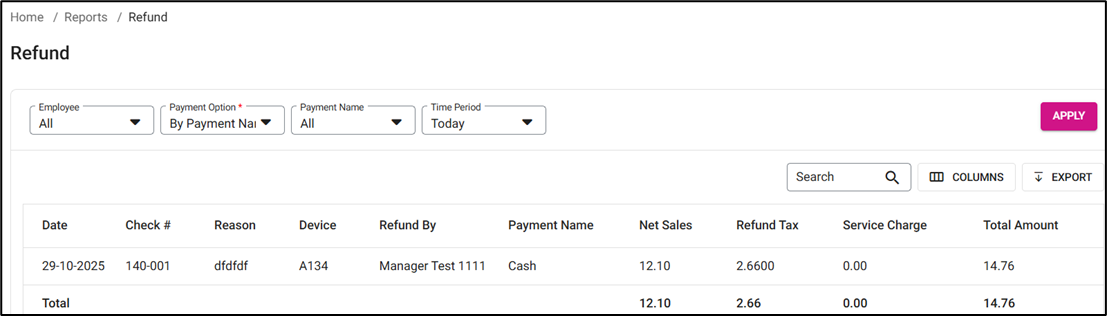
Select Reports > Refund
When a refund is performed on the whole check: you can view the Check Number, Payment Name, Reason and the Refund amount.
Enterprise Level
Sale Report
Navigation: In BO Enterprise, select Enterprise Reports > Sale Report. Run the report to assess the results:
- Sale Recap: Factor4 cards sales appear in Non-Sale Revenue as a line item. and, in tip& Gratuity and in other payment as Factor4.
- Cashier Out: Factor4 payments appear under Non-Sales Revenue as a Factor4 card sold, and in Tip & Gratuity and in other payment as Factor4.
- Weekly Summary: Select a Store, and Factor4 details will be included under Payment, Non-Sale Revenue.
- Sale Summary: Select Check No., and Factor4 details will be included in payment summary,
- Online Sales: Factor4 details will be included under the Payment Type column.
Factor4 Dashboard
Summary
- Factor4 payments visible under Other Payments section
Sales
- Net Sales - Displays Factor4 payments impacts on Net Sales, which appear under Payment Summary
- Transactions - Displays Factor4 payments impacts on Transactions by clicking Transactions, you can see Factor4 in the Tender section under Payment Summary.
- Online Ordering - Displays Factor4 payments impacts on Online Ordering. You can view the Net Sales, Gross Sales, and Transactions of Factor4 payments under Payment Summary.