How Order Connect Works with POS and Receipts
Orders Received via Order Connect
- Once online orders take place through a third-party (Grubhub, Uber Eats, etc.), then Order Connect will transmit to POS:
- If the Auto Accept Order toggle in Back Office Order Connect Settings is enabled (set to YES): Orders will automatically be accepted and the predefined Prep Time is applied
- Orders: you will be able to update the
- Once the check is received in POS, the Check can be accepted and opened, or it can be declined.
- The check cannot be altered at any point in the POS.
Notes:
- Discounts within Linga will not apply to Orders from Order Connect.
- Serving Size: We add multiple serving sizes for a single item
- Availability and Restriction Time: The timing will be displayed based on the store's opening and closing hours, as well as configured holidays. Menu items can be restricted by enabling the Hide Menu Item in Online Integration toggle. This restriction can be configured only on a daily of weekly basis
- Modifiers: Below are the modifier changes that need to be made specifically for Order Connect integration
- It is recommended to use unique modifier groups for Mandatory and Optional modifiers. However, the same modifier group can be configured as either mandatory or optional based on the business requirement.
- A modifier group that is used as a Mandatory modifier group for one menu item can also be used as an Optional modifier group for another menu item
- Included Modifiers will also apply to Order Connect.
- Minimum and Maximum quantities are applied at the modifier group level. Based on the configured minimum and maximum values, the same modifier can be selected multiple times within the modifier group. This functionality is applicable only to Mandatory Modifier Groups
- Delivery operations, including driver management, are handled by the providers
Half & Half Pizza
Order Connect and its providers now support Half & Half Pizza items. For detailed information on Half & Half Pizza, click here.
Order Placement from Providers
- Navigate to the Menu and select a pizza item.
- The item's pop-up window appears. where you can select the desired Serving Size. Once selected, you can choose the items for the Left Side and Right Side.
- You cannot select a Left Side item and a Right-Side item from different Serving Sizes. Both sides must belong to the same Serving Size.
- Ensure that the same Serving Size is selected for both the Left Side and Right Side items. Mixed Serving Sizes are not supported.
- Depending on the configured Modifiers, you can choose base Modifiers for the selected whole base item. You may also select any available sub-items associated with those Modifiers.
Order Received in the POS
Once an order is successfully placed on the provider's platform, it is sent to the POS. On the POS, you can view the received order.
Implementation in POS
Requirements: Web Order service must be enabled under POS Settings to receive checks through Order Connect.
With Auto Acceptance enabled:
- Once the order is placed from a Provider, the notification 'You have 1 online order' appears in POS.
- The check will be available under the Active tab in the Check Status section, as well as under Phone/Web Orders. The sections below provide a detailed explanation of how to manage the check. From there, you can open and close the check.
- The Type, the provider and type of service (Delivery/Pickup) will appear based the customer's selection.
- The Time Open displays the time when the order is received in POS from Order Connect.
Paying a Check
- Select a check, then click Paycheck. The Payments pane appears.
- The check can only be closed by clicking Submit.
- For Order Connect orders: only the Order Connect payment method is allowed. Other payment methods cannot be selected on the POS payment screen.
- After clicking Submit, the check will be closed and moved to the Closed tab.
- Reminder: a check from Order Connect can't be deleted, adjusted or split.
- You can still back out of paying the check and return to the main screen.
Check Options
On the Check Options screen, only the Print and Resend to Kitchen options are enabled for a Check from Order Connect, with all other options grayed-out.
On the Menu option screen, all the options are greyed out.
Resend To Kitchen
- When Resend to Kitchen is selected: a Kitchen Receipt is generated and sent to the Kitchen Printer.
Re Print Check
- After selecting the check from the active tab, the check can be reprinted from the store printers by clicking Re-print check.
Open Check
Reminder: a check from Order Connect can't be voided, discounted, modified, etc.
When a Check from Order Connect is opened, it appears in POS as per usual of other checks:
- All menu options will be disabled (Void, Discount, Modify).
- The Service Type will be marked as To Go or Delivery and greyed-out, as it can't be changed.
- Menu items cannot be deleted, and if attempting to delete an item a pop-up notification appears.
- The Customer will be greyed-out as it can't be changed.
- Split check and split seat will be disabled.
- In-store driver will not be assigned to Order Connect checks.
- Future orders will be handled and sent to the POS with Auto Acceptance enabled/disabled, as configured.
Closed Tab
Upon submitting an Active Order Connect check: it will be moved from the Active tab to the Closed tab. The employee who closed the check will appear in the Server column.
Check Summary
The Check Summary will show the following details:
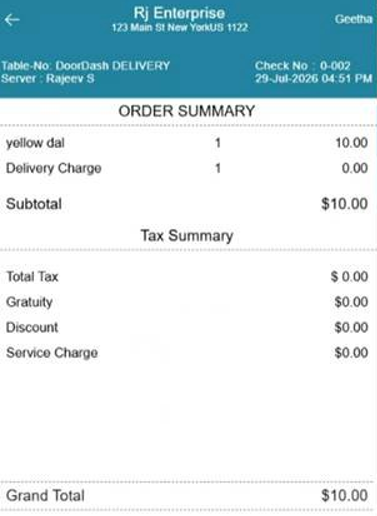
- The customer details will appear at the upper-right
- Table no will be the Order Connect Provider name and service type (above example Doordash Delivery)
- Server - The employee who closed the check
- The order summary will include the store date and time (configured in the BO)
- This will not include any platform fee and delivery charge
Re-Print Check
After selecting the check from the closed tab, the check can be reprinted from the store printers by clicking the Re- print check.
Re-Open Check
You can't reopen an Order Connect check from the Closed tab. When attempting to do so, a pop-up notification appears.
Phone/Web Orders
- An Order Connect check has appeared under the New tab.
- Once payment is completed, the check appears under the Complete tab.
Note:
- In Order Connect, only online payment will be allowed.
- Cash and Card payments can't be made on Order Connect checks in POS. When attempting to do so, a pop-up notification appears.
- Payment Void and Check Void can't be performed.
- Order Connect will allow Pick-Up and Delivery orders.
- You cannot delete a payment from an Order Connect check. When attempting to do so, a pop-up notification appears.
- The options Tax Exempt, Add Gratuity, and Discount won't be available and will all be disabled.
- Inclusive Tax: The inclusive tax for any menu item will not appear on an Order Connect order.
- Delivery Fee: When Order Connect drivers are assigned, then the delivery fee will be taken by Order Connect with nothing from our end.
- Service Type: Once order is placed via Order Connect, the Service Type can't be changed.
- Service type should be marked as TOGO for the instore pickup and Delivery for the delivery Orders
- When the check is opened, the Service Type can't be changed. When attempting to do so, a pop-up notification appears.
Notifications
If Auto Acceptance is Disabled
- A pop-up with sound will be displayed only on the dedicated terminal but not on other devices. The pop-up will display the order summary, including Check Number, Order Details, and Price with Accept or Decline buttons.
- Alternatively, a notification dropdown will be displayed. If there are multiple orders then they will appear in the Notification list. The oldest pending order will appear first in the list with Order Summary along with the Timer which is useful when needing to respond to a request within your desired timeframe.
- The Order Summary will contain almost all check details: including Order Type, Order Date & Time, Amount, Check Information, and Delivery Type.
- Upon responding (Accepted/Declined), the order will be removed from the notification list regardless of the response type. The notification will remain visible until you respond.
- If the request is not responded to within the configured timeframe (e.g. 15 min), it will be considered Declined. This behavior will be verified against the existing Online Ordering flow.
- Notifications will not appear on the Payment screen.
- If the POS is in offline mode, Order requests will be automatically declined.
Accept
- Accepted orders will be moved to both:
- Phone/Web Orders > New
- Check Status > Active
- Upon acceptance, the order details will be sent to the Kitchen. The first accepted check will be sent to the Kitchen regardless of the order receipt time.
Decline
- Declined orders will be moved to Check Status > Void.
- The other options such as Pay, Cancel, Edit will be restricted as is consistent with other online ordering features.
Receipts
When an Order Connect order is received from the POS but the Kitchen Printer is online, the system will automatically generate a Kitchen Receipt.