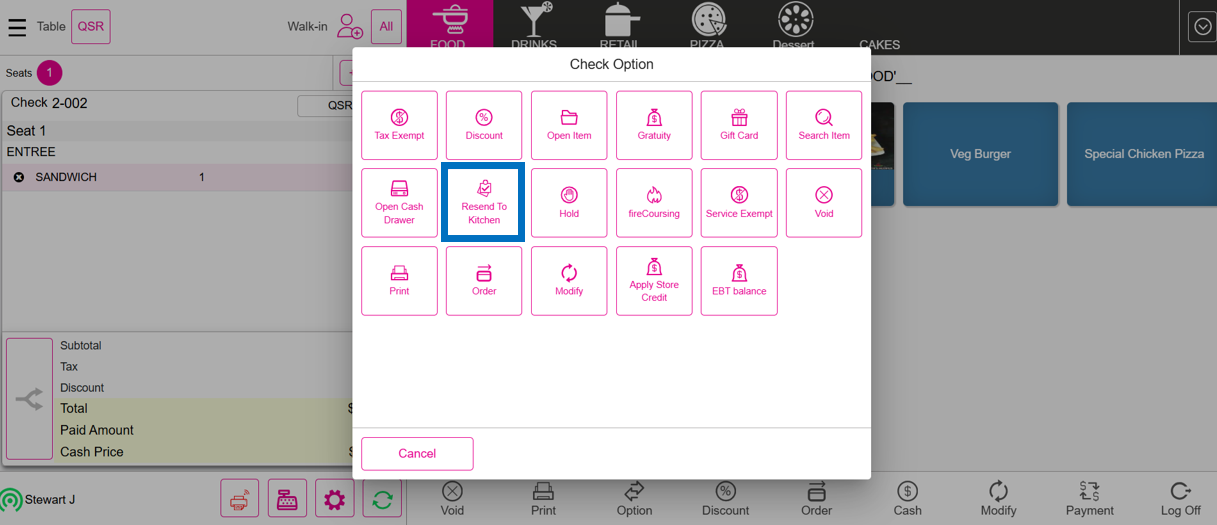
POS: Check Options - Resend to Kitchen

POS: Check Options - Resend to Kitchen

  • On the Menu screen, select the  Option button at the bottom.

  • On the Check Options screen, select Resend to Kitchen.
      • Related Articles

      • POS: Uber Eats Integration

        For more information on the Uber Eats (UE) Integration, see the Uber Eats Knowledge Article. Uber Eats Orders Appearing in POS Once an Order is placed from Uber Eats, the message ‘You have 1 online order’ appears in POS. The Check will be listed ...
      • POS: Check Options - Auto Discount

        Create an Item Based Discount with an Auto Discount Navigation: In the Back Office for your Store, select Products/Items > Discounts > Item Based Create an Item Based Discount with the Auto Discount toggle enabled. Once the Discount is created, the ...
      • POS: Check Options - Void Item

        Note: Only Employees with the proper Role and Permission settings have access to Void the Order. Remove a Specific Item from a Check On the Menu screen, select the Menu Item you wish to remove from the Check. Select the Option button at the bottom. ...
      • POS: Check Options - Fire Coursing

        Fire Coursing is a way to take an Order and divide it across the time spent at a Table. Note: Before selecting Fire Coursing, the ordered Menu Item(s) must be sent to the Kitchen. On the Menu screen, select the Option button at the bottom. On the ...
      • POS: Check Options - Submit an Order

        On the Menu screen, select the Option button at the bottom. On the Check Options screen, select Order. When Order is clicked, Menu Items from the Check will be send to the Kitchen.