Retail Back Office: Account Balance Report Settings
Navigation: Sign into the Back Office then select a Store. On the left-side Navigation Panel, click Settings. On the Settings page, under Reports click Account Balance.

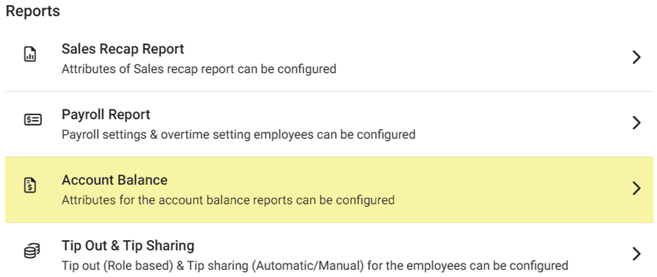
The Account Balance page contains multiple fields to fill in.
Enter a value in each field (letters and numbers acceptable) for it to appear on the Account Balance report:
Paid Out, Refund, Deposit, Over/Shortage, Sales Open Items, Combo Discounts, Comp Discounts, HA and GC Recharge, Promo Discounts, Donation Discounts, and Loyalty Discounts.

- Click Save. The confirmation ‘Account Balance Updated Successfully’ appears.
Related Articles
Retail Back Office: Account Balance Report
Navigation: Sign into the Back Office for your Retail Store, then select Reports > Account Balance The Account Balance page displays the Balances of the Store’s Account on a selected Day. Select a Date (calendar view). Only 1 date can be selected at ...
Retail Back Office: Enterprise - Reports
Navigation: Sign into the Back Office. On the left-side Navigation Panel, click Enterprise. Select Enterprise Reports, and the dropdown contains options to access specific reporting Dashboards: Enterprise Reports Sale Report The Sale Report dashboard ...
Retail Back Office: User Management - Roles
Navigation: Sign into the Back Office for your Retail Store, then select User Management > Roles The Roles page appears, which displays a table of the currently existing Roles within this Retail Store, with the following columns: Create a New Role or ...
Retail Back Office: Sale Reports
Department Category Sub Category Retail Item Hourly Daily Sale Recap Cashier Out Weekly Summary Sale Summary Cashier Out Weekly Summary Sale Summary Department The default tab on the Sales Report screen. It shows data from all Departments by default, ...
Retail POS: Operation - POS Settings
Navigation: Log into POS, then select Operation > POS Settings Note: Only Employees with the proper Role and Permission settings have access to POS Settings. Till Settings This section is used to define the behavior of Till Management. Back Office ...