Retail Back Office: Daily Tender Report
Navigation: Sign into the Back Office for your Retail Store, then select Reports > Daily Tender
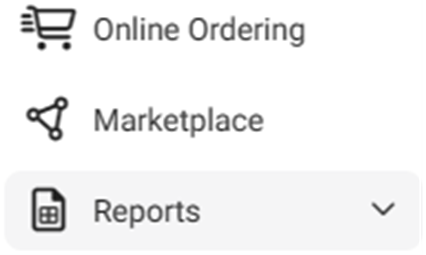
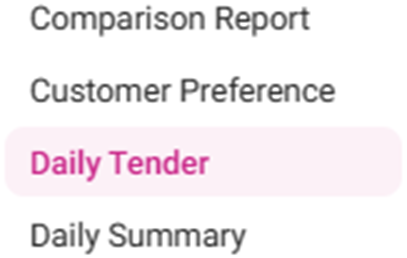
Select a Time Period from the dropdown, then click Apply. The Daily Tender table with the below columns is populated:
Date: The Date the payment was made (DD-MMM-YYYY format).
Cash: The Total amount (in currency) paid with Cash.
Gift Card: The amount (in currency) collected from Gift Cards.
Loyalty: The amount (in currency) collected from Loyalty.
Others: The amount (in currency) collected from additional types of payment.
Net Amt: The total Net Amount (in currency) collected from all types of payment.
Day Total: Total amount (in currency) collected from Net Amt + Tips.
Grand Total: The bottom row of the table with sums for all currency column values.
Related Articles
Retail Back Office: User Management - Roles
Navigation: Sign into the Back Office for your Retail Store, then select User Management > Roles The Roles page appears, which displays a table of the currently existing Roles within this Retail Store, with the following columns: Create a New Role or ...
Back Office: Daily Tender Report
Sign into the Back Office and select a Store. On the left-side Navigation Panel, click Reports then Daily Tender. Select aTime Period from the dropdown: Today – The report will run based on Today’s store business date. Yesterday – The report will run ...
Retail POS: Membership Payments
Membership gives the ability to organize Customers into Loyal Customers. By using Membership Account, you will be able to organize and apply Tax exemptions to Members of the group, maintain the account balance, and issue allowances. Membership ...
Retail Back Office: Daily Summary Report
Navigation: Sign into the Back Office for your Retail Store, then select Reports > Daily Summary. The Daily Summary page displays sales revenue information, with a table broken down by Date, Department and Revenue sources. Select the Department, Tax, ...
Back Office: Daily Summary Report
Sign into the Back Office and select a Store. On the left-side Navigation Panel, click Reports then Daily Summary. The Daily Summary page appears. The Daily Summary page displays a table that contains sales revenue information, broken down by Date, ...