Retail Back Office: Enterprise Dashboard

Retail Back Office: Enterprise Dashboard


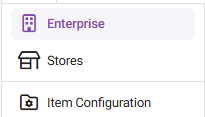
Navigation: Sign into the Back Office. On the left-side Navigation Panel, click Enterprise.

  1. For a moment, your data will load while the banner ‘Please wait while preparing your enterprise metrics’ appears.


  2. Then, the Enterprise page is populated. On the Enterprise page, narrow your data results from the dropdowns:

    1. Filter Store byStoresGroupStateCity, or Zip Code, then select from the corresponding follow-up dropdown if needed.
    2. Selected Store: Select the Stores that will appear on the dashboard results, or Select All.
    3. Select the Time Period.

  3. Click Apply. The ‘Please wait…’ banner appears again, and the colorized tiles will have spinning circles next to them to indicate loading.


  4. When complete, all the colorized tiles will have updated numbers next to them. Scroll down to view updated data from the following data:

    1. Sales By Store Table


    2. Net Sales By Hour


    3. Sales Per Order Type


    4. Top 5 Categories


    5. Top 5 Items


    6. Top 5 Stores
    • Related Articles

    • Retail Back Office: Enterprise - Reports

      Navigation: Sign into the Back Office. On the left-side Navigation Panel, click Enterprise. Select Enterprise Reports, and the dropdown contains options to access specific reporting Dashboards: Enterprise Reports Sale Report The Sale Report dashboard ...
    • Retail Back Office: Admin - Dashboard

      Navigation: Log in to Dealer Admin, then select Dashboard. On the Dashboard, you will be able to view the tiles displaying amounts such as the number of Stores using types of plans Core/Basic, Pro, and Enterprise - as well as Sales data broken down ...
    • Retail Back Office: Enterprise Stores

      Navigation: Sign into the Back Office for your Retail Store. On the left-side Navigation Panel, click Stores. The Stores page appears, with each tile representing a Store under your Enterprise. Click on a Store's tile to access its Back Office. Note: ...
    • Retail Back Office: Enterprise - Customers

      Navigation: Sign into the Back Office. On the left-side Navigation Panel, select Enterprise then Customers. When selected, the existing Customers’ details will be shown as a table with the following columns: Image, Name, E-Mail, Phone Number, Loyalty ...
    • Back Office: Enterprise - Reports

      Sign into the Back Office. On the left-side Navigation Panel, click Enterprise. Then click Enterprise Reports. Under Enterprise Reports are options to access specific reporting Dashboards: Sale Report The Sale Report dashboard contains reporting of ...