Retail Back Office: User Management - Disabling a User from Sign In
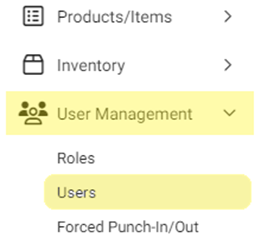
Navigation: Sign into the Back Office. for your Retail Store, then select User Management > Users.
- On the Users screen: identify the User to be disabled from signing in, then under the Actions column click the corresponding three dots ••• and select Disable Sign In.
- On the User Disabling pop-up that appears: click Disable Sign-In to confirm disabling. If you wish to close the pop-up without disabling, click X Close / Cancel.
- If confirmed, you’re returned to the main Users screen and the banner Sign In Disabled Successfully appears at the upper-right.