Retail Back Office: User Management - Resetting a User's Password

Retail Back Office: User Management - Resetting a User's Password


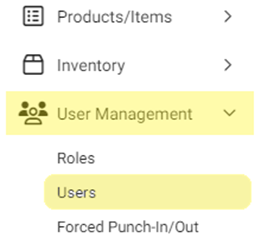
Navigation: Sign into the Back Office. for your Retail Store, then select User Management Users.

  1. On the Users screen, identify the User whose password needs resetting. Then, under the Actions column click the corresponding three dots (•••) then select Reset Password.


  2. On the Reset Password pop-up that appears, enter the New Password then re-enter the same Password to Confirm. Green circled checkmark means a password requirement is met. When both Passwords are identical and all requirements are met, click Authenticate.


  3. You are returned to the main Users screen and the 'Your Password… Reset Successfully' confirmation banner appears at the upper-right.
    • Related Articles

    • Back Office: User Management - Resetting a User's Password

      Sign into the Back Office and select a Store. On the left-side Navigation Panel, click User Management then Users. On the Users screen, under the Actions column click the corresponding three dots (•••) for a User then click Reset Password. The Reset ...
    • June 2024 - Password Policy Changes for Admin Users

      Password Changes for Dealer Admin Attached is a copy of this Article, including screenshots for a visual reference. Introduction: This document explains the new workflow of the Dealer Admin login page Current Workflow: The minimum required length for ...
    • Retail Back Office: User Management - Editing an Existing User

      Navigation: Sign into the Back Office. for your Retail Store, then select User Management > Users. On the Users screen: identify the User to be updated and under the Actions column click the corresponding three dots ••• then select Edit. When adding ...
    • Retail Back Office: User Management - Creating a New User

      Navigation: Sign into the Back Office for your Retail Store. Select User Management > Users. General On the Users screen: click + New User. The New User screen appears. Select whether to Enable User Sign In (requires User to enter Email and Password, ...
    • Retail Back Office: User Management - Roles

      Navigation: Sign into the Back Office for your Retail Store, then select User Management > Roles The Roles page appears, which displays a table of the currently existing Roles within this Retail Store, with the following columns: Create a New Role or ...