Retail POS: Global Search
The Search Other Stores option appears at the bottom of the item search window.
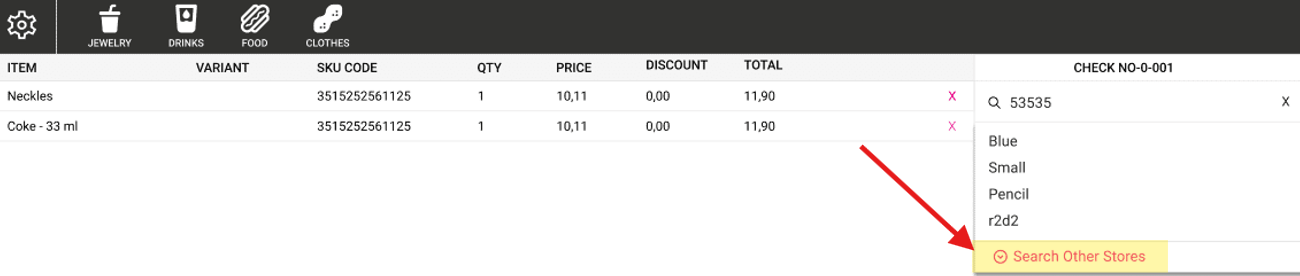
- When clicked, the Global Search pop-up appears. At the top is a search bar for finding items at other Stores, and below is a table containing the following columns:
- Store Name – Name of the store
- Selling Price – Selling price of the item in the store
- Current Inventory – Inventory of the item in the store
- Click Cancel to close the Global Search pop-up without continuing to search for items at other stores.
- When typing in the Search field: you can search by the item's Name or SKU Number. Enter at least 2 characters/digits (letters or numbers), and suggestions will appear based on matching what you typed.
- If searching using a SKU Code - if the item contains multiple SKU Codes then all matching codes will appear.
Variant Items
If the item includes variants, all variants will appear. You can search for specific variants also. For variant results, the below mentioned columns will appear:
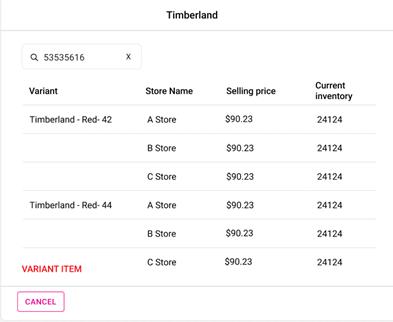
- Variant – Name of the variant should be displayed
- Store – Name of the store will be displayed
- Selling Price – Selling price of the item in the store
- Current Inventory – Inventory of the item in the store
Variant item created in BO will appear, then select the needed variant item.
Standard and Scale Items
If searching Standard and Scale items: Standard and Scale items created in BO will appear, then select the needed items.
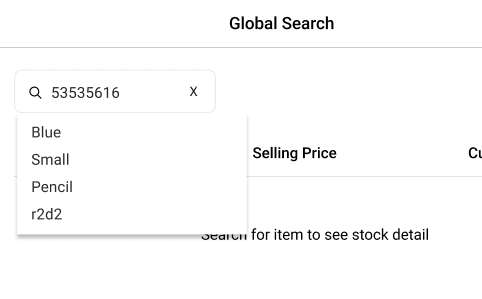
- Example: If Pencil is selected another screen appears which displays the details of Current Inventory and Selling price of the item that user searched under different stores in the Enterprise.
Kit/Assembly Items
You can search Kit/Assembly items by entering the combo name or SKU code created for the item and also search the particular item in the combo by SKU or Name.
Results will be displayed in a table containing the following columns: Store Name and Selling Price, followed by the Included Items section of the Kit/Assembly in the form of a table with the following columns:
- Item – Name of the item included in the Kit/Assembly
- SKU – SKU code of the item
- Store Name – Name of the store will be displayed
- Selling Price – Selling price of the item in the store
- Current Inventory – Inventory of the item in the store
Of the displayed Kit/Assembly items created in BO, select the item needed.