Servme Integration
Prerequisites
- An active Servme account configured with POS integration. Please contact POS support to get the API Key, Store ID, Account ID, Employee User ID, and Employee User Token which are required to configure the Servme integration.
- Close and Update the Order Webhook URL from Servme.
Exclusions and Limitations
- Existing POS customers will not be available in Servme.
- Merging Checks within this integration can disrupt Reservation status and reporting in Servme. To ensure accurate tracking: avoid using this function for Reservations made through Servme.
- Any Refunds made will not be reflected in Servme.
- If a Check is split in the POS system: any newly created Check won’t appear in Servme, which only keeps track of the original Check's Status and Menu Items.
- Void transactions will be marked left in Servme but excluded from the Servme Daily Report.
- Only Menu Items (excluding Modifiers) and Check details are included in the Servme Daily Report.
- Table layouts must be manually created in both POS and Servme.
Data Flow and Notifications
- Servme notifies POS only after the Guest arrives and the Reservation is marked as Arrived.
- The following information is shared from POS to Servme.
- Guest Count updates
- Menu Items
- Invoice details: including payment methods, currency and discount amount
- Changes to the Reservation Table assignment
Enable Servme Integration in POS
Navigation: Log into Back Office. On the left-side pane, select Home then Integration Hub.
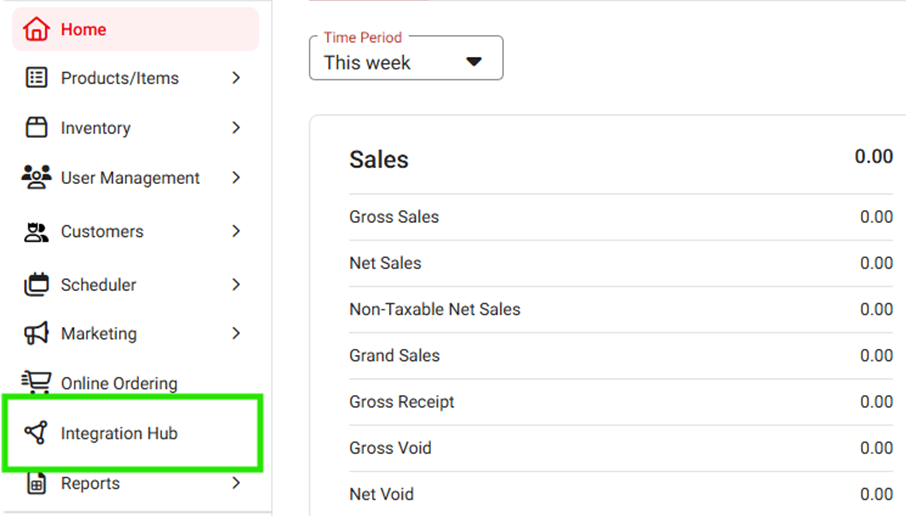
- On the Integration Hub page, select Browse and Subscribe Integrations.
- Under the Reservation Management section: within the Servme integration tile click Add.
- On the Disclaimer page that appears: after selecting the Terms and Conditions box at the bottom left, click Confirm at the upper right. You will be redirected to the Configure and Manage Integrations page.
Update the Servme Webhook URL
Navigation: For your Store: on the left-side pane, select Integration Hub, then on the Integration Hub page select Web Hooks.
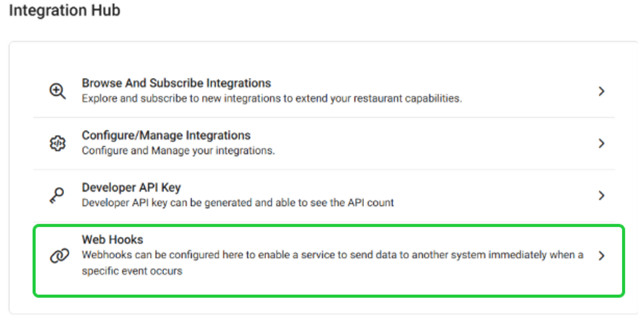
- Enable the Close Order Web Hooks Is Active and Update Order Web Hooks Is Active toggles (set both to YES).
- Update Close Order Web Hooks and Update Order Web Hooks fields with webhook URLs from Servme.
Post Integration Activation Actions
New Reservation
- A Reservation is assigned to a Table and marked Arrived in Servme.
- POS will receive it and will display under the Check Status > Active section with the following assigned information as Column values:
- Table of Tab
- Check No (Number)
- Type of Service
- Time Open (the time the Check was made)
- People (number of occupants at the Table)
- Server type
- Check Total
- Check Amount Per Customer
- Select the Check then click Open Check.
- Once the Check is opened in POS, the Order can be taken. The customer’s Name will be displayed at the top.
- Click the Customer's Name to view their personal details and any Reservation notes.
Close Check in POS
- When an employee closes a Check with full payment in POS, then Servme will be automatically notified with invoice information included.
- Invoice details can be viewed in Servme under the reservation history of the Customer.
Transfer Table Reservation
To move a Check to another Table:
- On the main POS page: select the Table Layout tab (next to Check Status), then select the Transfer option at the bottom.
- Select Transfer to Table, then select the source Table Number. The assigned Check will appear under the middle Checks section. Select the Check, then select the destination Table Number. When you're ready to transfer the Check, click Done at the bottom-right.
- The updated Table Number will appear on the Check in Servme, and the Table will be moved accordingly.
Payments
- On the Order screen, click Payment at the bottom-right.
- Enter the Amount then select the Payment Method, such as cash, loyalty, gift card, etc.
- When ready to submit payment, click Submit below the number pad.
- The Payment details will appear in Servme’s Daily Report.
Discount
Before creating an Invoice: apply a Discount:
- On the Order screen: click Option on the bottom bar. Then on the Check Option pop-up click Discount.
- On the Discounts pop-up: select the type of Discount.
- After closing the Check: the Discount details can be viewed in Servme by navigating to Analytics. For the Daily Report, view the Discount column.
Customer Count Update
- Guest Counts can be increased by clicking the Plus (+) button at the top-right under the Customer's Name. The Customer Count will then be added.
- The update will be instantly reflected as the number of Guests in Servme.
Related Articles
POS: Servme Integration
Back Office For more information on the Servme Integration, see the Servme Knowledge Article. POS When a table is booked in the Servme portal: that information is shared to POS. When a Table Reservation happens in Servme, it is received in POS via ...Shogo Integration
Subscribe and Configure in Back Office Page Navigation: Log into Back Office. On the left-side pane: select Home then Integration Hub. On the Integration Hub page, select Browse and Subscribe Integrations. Under the Inventory Management section: for ...Restaurant365 Integration
Subscribe to and Configure Restaurant365 in Back Office Page Navigation: Log into Back Office. On the left-side pane, select Home then Integration Hub. On the Integration Hub page, select Browse and Subscribe Integrations. Under the Inventory ...Chowly Integration
Subscribe and Configure in Back Office Requirement To get started with this integration, an OLO add-on license is required. Please ensure that the OLO web order license is purchased and enabled under the account license settings. Navigation: Log into ...Factor4 Integration
Introduction This document provides an overview of the Factor4 Direct API Integration with the POS and Back Office systems. The integration enables seamless processing of Factor4 Gift Card transactions, including card issuance, balance inquiry, ...