Retail Back Office: Products/Items - Products/Items
Navigation: Log into the BO for your Store, then select Product/Items > Product/Items
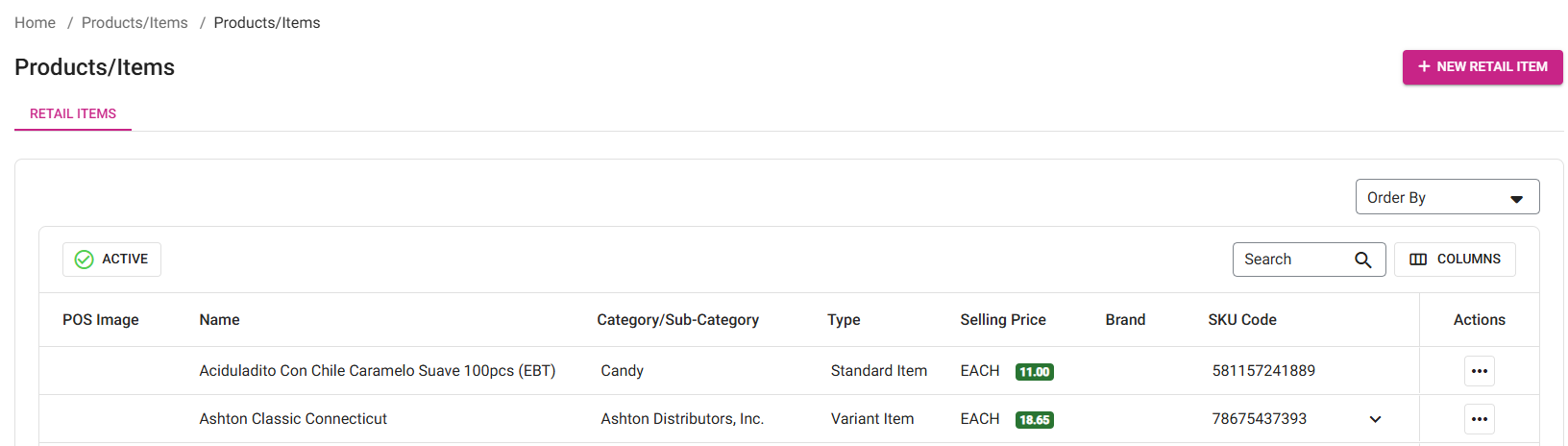
The Products/Items page appears, which displays a table for Retail Items.
Create a New Retail Item (or Update an Existing Retail Item)
- Click + New Retail Item at the upper-right.
- To update an existing Item, identify it in the table and under the Actions column click the three dots (···) button then click Edit. When finished
(1) Basic Details - General
- POS Display Button
- You can set a POS Display Button for the Retail Item to appear as in POS, although it is not mandatory. You have multiple options for setting a Display Button:
- Standard Color
- Click the small colorized square (next to the larger colorized square).
- Select the color by using the 2 sliders.
- Select An Image From The Gallery
- Click the second button option to choose a brand image from the gallery.
- You can scroll through the gallery and/or use the Search bar to find an option based on brand name or item type.
- Once you click an image, you will be returned to the New/Update Retail Item screen with the image assigned as the POS Display Button. When you mouse over the image, the Trash Can icon appears. If the icon is clicked, the image is removed as your POS Display Button and is replaced by the color option.
- Upload New Image
- Click the icon of the
document with the upwards facing arrow. A File Explorer pop-up window appears.
- Navigate to where your Display Button image is saved, then select the file and click Open or just double-click it.
- File Format – JPG or PNG
- File Size – Maximum of 2 MB
- Resolution – Recommended 400px by 400px
- Name - Enter the Name of the Retail Item (mandatory). It cannot exceed 50 characters and cannot be identical to the Name of an existing Retail Item.
- Secondary Name - Enter any secondary name this Item could be referred to as. It cannot exceed 50 characters.
- POS Level - Select whether this item belongs under a Category or Sub Category (mandatory) from the dropdown.
- POS Category / Sub Category - After selecting the POS Level, select a POS Category (and Sub Category if needed) from the list of existing Categories/Subcategories in the dropdown.
(1) Basic Details - Tax
- Select the Taxes that apply to this Retail Item (mandatory). You can choose one or more existing Taxes from the list (for a larger list, you can Show All or Hide as needed). If the Inherit Tax From Category Settings toggle is enabled, then the Tax setting will be inherited based on the POS Level selection.
- To create a new Tax, click the + Add Tax button. When any new Tax is created here, then the same Tax will be reflected in the Taxes tab. For more information on Taxes, see the Taxes article.
(1) Basic Details - Product Type
- Select a Product Type from the options:
Standard Item
- Standard Item
- Open Item - When the toggle is enabled that item will be considered as a Open item and the Supply Price, Markup and Selling Price will be greyed out. Some Toggles under Visibility will be disabled.
- Standard Item Table - Contains the following columns:
- Unit Measure - Fixed component for a Retail Item which is configured under Category section as Each.
- SKU Type and SKU Code - SKU Type can be either Custom or Auto. Click the + (plus) sign next to the SKU Code to add another SKU Code. After another SKU Code is entered, click + Add SKU Code to add subsequent Codes. Delete a SKU Code by clicking the corresponding trash can button to the right of a SKU Code.
- If Custom then manually enter the SKU Code. It must be a unique code and must not be identical to another SKU Code.
- If Auto, then the SKU Code will be automatically populated based on the Automatic SKU Code Generation toggle in Back Office (see the Retail Settings article). When an Auto code is pre-populated then the + symbol will be available for adding SKU Codes. You will be able to add multiple SKU Codes for a single item.
- Whenever attempting to change the SKU Type, a confirmation message appears 'You are trying to change the SKUTYPE which will allow the system to generate new SKU CODE and this will override the previous SKU code. Do you wish to continue - Yes or No'
- If YES, this will override all the SKU Codes and new SKU Codes are generated.
- If NO, the SKU Type won't change.
- Supplier Cost - Will be auto-populated with a value that's based on the Selling Price and is an editable field.
- Markup - This is the profit percentage. Based on this, the Selling Price will be populated.
- Selling Price - This is the mandatory field and based on the Markup and Supply Price this will vary.
- Selling Price = (Supply Price + [Supply Price * Markup %]) / 100
- Open Item - When the toggle is enabled that item will be considered as a Open item and the Supply Price, Markup and Selling Price will be greyed out. Some Toggles under Visibility will be disabled.
Item With Variants
- Item With Variants
- Any Retail Item which has variants (such as Color [Blue, Green, Yellow, White], Size [S, M, L] etc.) will be under Item with Variants.
- A table appears with the following columns:
- Name - You can add an Attribute by selecting an Attribute Name from the dropdown.
- For more information on Attributes, see the Attributes article.
- Values - Select one or more values based on the selected Attribute.
- Example: the attribute Sizes is selected, with a list of measurement size values.
- Click Select All to make all values available for selection with this Retail Item.
- Also, you can search for a specific value by typing in the field at the top of the dropdown.
- To include an additional Attribute, click + Add Attribute and repeat the above Name and Value steps.
- To edit an existing Attribute for this Retail Item: click its corresponding pencil icon
, and the Update Attribute pane appears. Update the Attribute as needed then click Update at the bottom-right. You are returned to the previous screen with the 'Attribute Updated Successfully' confirmation banner appearing at the upper-right.
- For variant item, if you attempt to add a new Attribute or add Values which changes the matrix then a prompt should appear 'This Item is mapped with KIT/ASSEMBLY. Please unlink the item and try again and if you don't wish to unlink the item, kindly create a new retail item product' with an OK button.
- To delete an existing Attribute: click its corresponding trash can icon
. The entire Attribute row will be removed.
- You can shift the order of appearance of the Attributes by clicking-and-dragging on the six dots (2 rows of 3) button to the left of the row.
- When satisfied with all Attributes and Values for this Retail Item with Variants, click Apply. The Set Price section appears below the table, with rows for every Attribute Value and the following columns:
- Name: The Name is based on the Retail name and the combination of Attributes.
- SKU Type and SKU Code: This can be either Custom or Auto. When Auto is selected, then the SKU Code will automatically be populated (see the Automatic SKU Code Generation toggle on the Retail Settings article), but if the toggle is disabled then the Code will need to be entered manually. When Custom is selected, manually enter the Code.
- To include additional SKU Codes, click the plus (+) symbol then + Add SKU Code. Select the SKU Type, and if Custom then enter the SKU Code.
- You can delete the SKU Code by clicking the Delete
icon. When Delete icon is clicked, the Delete pop-up will appear and when Delete option is clicked then particular SKU Code will be deleted. Click Cancel or Close to close the pop-up without deleting the Code.
- Supplier Cost: Will be populated based on the Selling Price and is editable. The Apply to All (V) button is available at the top row to apply that Price to all subsequent Prices.
- Markup: This percentage represents the profit based on the Supplier Cost.
- Selling Price: (mandatory) the value generated by the formula (Supply Price + [Supply Price * Markup %]) / 100. Like with Supplier Cost, the Apply to All (V) button is available.
- Editing the following values has the following effect.
- Editing the Supplier Cost updates the Markup percentage
- Editing the Markup updates the Selling Price
- Editing the Selling Price updates the Markup
- The Enable toggle is available for each row and is enabled by default. If disabled, the Inactivate pop-up appears. If Inactivate is selected, the attribute value will be deactivated. If Cancel or Close are selected, the pop-up will be closed and the value will be kept as Active. Use the same process if the value is disabled and the Activate pop-up.
- A Child Item does not apply to Item with Variant.
- Any Retail Item which has variants (such as Color [Blue, Green, Yellow, White], Size [S, M, L] etc.) will be under Item with Variants.
Kit/Assembly
- Kit/Assembly
Scale Item
(1) Basic Details - Visibility
- You set Visibility settings. Visibility option availability are based on the selected Product Type.
- EBT Retail Item - If YES, then the Retail Item Tax will be excluded in the POS. If No, it won't be excluded.
- Track Inventory - If YES, the Inventory Detail screen will be visible. where you can track all the Inventory details for this Retail Item. If NO, the screen won't be visible.
- Not an Inventory Item - If YES, then inventory will not be tracked for this item. If NO, then it will be tracked.
- Child - If YES, the Child screen will be visible, where you can add or link the Child to the Retail Item. If NO, it won't be visible.
- Hide in POS - If YES, this Retail Item won't be visible in POS. If NO, it will be visible.
- Price Level Settings - If YES, you will be able to establish Price Level Settings.
- The Dollar Sign ($) button will appear to the right of a Product Type row.
- If clicked, the Price Level pane appears. The Selling Price entered for the item will be prepopulated in Price Level 1 which will be grayed out and the Delete button won't be displayed. If there are any changes to the Selling Price will be reflected in Level 1.
- Up to 10 Price Levels can be added.
- For digits: up to 9 before the decimal and 2 after the decimal will be allowed (Example: 123456789.12).
(1) Basic Details - Availability
- Select when the Retail Item will be available in Sales channels
- Always
- If selected, this Retail Item will be available during all days and times.
- When finished with the Basic Details page, click Next at the bottom-right.
(2) Inventory Details
- When the Track Inventory toggle is enabled under Visibility, the Inventory Details section will appear. The Alert pop-up will appear to confirm that, once enabled, the toggle can't be disabled.
- Select the Inventory Level, then select the Category (and Sub Category accordingly) (mandatory). You can type in the Search field in both dropdowns to find a Category or Sub Category more quickly.
- You can enter a Brand name, but it's not mandatory (maximum of 50 characters).
- Select the Inventory Unit from the dropdown (created in the In House Unit in Inventory section, and you can Search to find a Unit more quickly) (mandatory). When Inventory Unit is selected then provide the Par Level for that Unit.
- Tracking is used to track an Inventory Item. It can be tracked either By Lot Number or By Serial Number. When No Tracking is selected, this Inventory Item will not be tracked.
- Select a Vendor (from the list of Vendors already created). You can Search to find a Vendor more quickly, or even create a new Vendor by clicking + New Vendor.
- If the Calculate COGS on Cost Price toggle is enabled then the Inventory Item will work based on cost price. If Disabled then it will work based on Selling Price.
- Storage
- Select the Primary Storage from the dropdown (the list already created in BO) (mandatory).
- Select the Secondary Storage from the dropdown (the list already created in BO).
- Inventory Levels
- By using this option the created Item will be reflected in all Retail Stores under the Enterprise. It contains the following columns:
- For Standard/Scale Items
- Store Name - The Name of the Stores available under your Enterprise.
- Current Inventory - You can update the corresponding Current Inventory of this Item at this Store. You can use the Apply to All button to apply the value in the top field to all below corresponding fields.
- Par level - You can update the corresponding Par Level of this Item at this Store.
- For Current Inventory and Par Level, You can use the Apply to All button to apply the value in the top field to all below corresponding fields.
- For Variant Items
- Item Name – The Name of the Variant Items available under your Enterprise.
- Store Name – The Name of the Stores available under your Enterprise.
- Current Inventory – You can update the corresponding Current Inventory of this Variant Item at this Store.
- Par Level – You can update the corresponding Par Level of this Variant Item at this Store.
- For Current Inventory and Par Level, You can use the Apply to All button to apply the value in the top field to all below corresponding fields.
- When ready, click Save & Next at the bottom-right. An alert pop-up appears to confirm saving the Item before moving forward.
(3) Child
- Note: the Retail Item must be created and saved before linking Child Item(s). When creating a new Retail Item, click Save & Next to proceed to the Child section.
- The Child screen appears only for Standard Items and when both the Track Inventory and Child toggles are enabled. It contains links for adding Child Items under this Retail Item:
- Link Existing Item
- The Child Items table displays the Child Items that are already linked, with the following columns: Name, SKU, Selling Ratio, Cost, and (Unit) Price.
- If no Child is added/linked, the message 'No Child added' message appears
- The Actions column contains the following options:
- Edit - Opens the Update Retail Item screen to update information about the selected Child Item. When finished updating the Item, click Update at the upper-right.
- Unlink - Unlink this Child Item from the Retail Item.
- Delete - Deletes the Child Item.
- When ready to create the new Retail Item, click Save.
Related Articles
Retail Back Office: Products/Items - Reasons
Navigation: Sign into the Back Office for your Retail Store, then select Products/Items > Reasons The Reasons page is for defining the Reasons an Employee/Manager can select when processing Tax Exempt, Void, Paid In/Out, Over/Shortage, etc. in POS. ...Retail Back Office: Products/Items - Bulk Update
Navigation: Log into the Back Office for your Store, then select Products/Items > Bulk Update The Bulk Update page displays all the Categories/Subcategories and Retail Items created under Products/Items in table view. When no Retail Item has been ...Retail Back Office: Products/Items - Upcharges
Navigation: Log into the Back Office for your Store, then select Products/Items > Upcharges The Upcharges page displays a table containing the Name of each Upcharge under the Store, along with Actions to Edit or Delete. To Delete an Upcharge: click ...Back Office: Products/Items - Products/Items
Navigation: Sign into the Back Office for your Store. On the left-side, select Products/Items then Products/Items. The Products/Items page displays all established Menu Items or Retail Items under the Store. Create or Update an Item To create a new ...Retail Back Office: Products/Items - Display Groups
Navigate: Log into the Back Office for your Store, then select Products/Items > Display Group Display Groups give you the option to create and sell a predefined combination of Retail Items. The table displays the list of the saved Display Groups with ...