Retail Back Office: Products/Items - Reasons
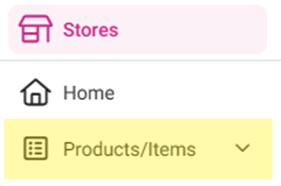
Navigation: Sign into the Back Office for your Retail Store, then select Products/Items > Reasons
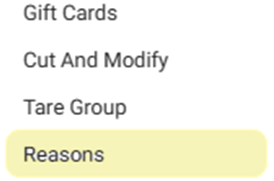
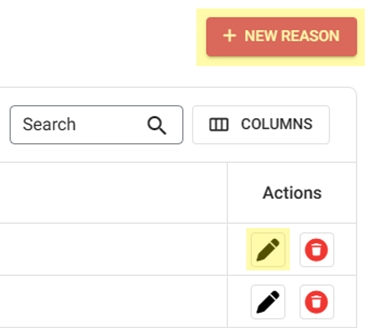
The Reasons page is for defining the Reasons an Employee/Manager can select when processing Tax Exempt, Void, Paid In/Out, Over/Shortage, etc. in POS. It displays a table of existing Reasons created under this Retail Store, with columns for the name of the Reason, the selected Type, and Actions (Edit or Delete).
On the Reasons screen: create a new Reason by clicking + NEW REASON or update an existing Reason by clicking the corresponding pencil icon.
New Reason
On the New Reason pane:
Select the Reason Type.
Enter the Reason.
When finished, click Save at the bottom-right.


Update Reason
On the Update Reason pane:
Update the existing Reason Type
and / or
Update the existing Reason.
When finished, click Update at the bottom-right.


Related Articles
Back Office: Inventory Report
Log into the Back Office and select a Store. Under Reports > Inventory Reports. On the Inventory Reports dashboard, select a tab. Master Stock Purchased Item Consumption Log Compare Inventory Count Sheet COGS Adjust Inventory Inventory Item History ...
Reatil Back Office: Inventory Reports
Navigation: Log into the Back Office for your Retail Store, then select Reports > Inventory Reports. The Inventory Reports page is organized into multiple tabs: Master Stock Purchased Item Consumption Log Compare Inventory Count Sheet COGS Adjust ...
Retail Back Office: Products/Items - Products/Items
Navigation: Log into the BO for your Store, then select Product/Items > Product/Items The Products/Items page appears, which displays a table for Retail Items. Create a New Retail Item (or Update an Existing Retail Item) Click + New Retail Item at ...
Retail Back Office: Products/Items - Bulk Update
Navigation: Log into the Back Office for your Store, then select Products/Items > Bulk Update The Bulk Update page displays all the Categories/Subcategories and Retail Items created under Products/Items in table view. When no Retail Item has been ...
Retail Back Office: Products/Items - Upcharges
Navigation: Log into the Back Office for your Store, then select Products/Items > Upcharges The Upcharges page displays a table containing the Name of each Upcharge under the Store, along with Actions to Edit or Delete. To Delete an Upcharge: click ...