Retail Back Office: User Management - Creating a New User
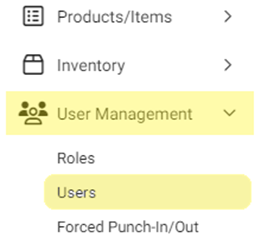
Navigation: Sign into the Back Office for your Retail Store. Select User Management > Users.
General
- On the Users screen: click + New User. The New User screen appears.
- Select whether to Enable User Sign In (requires User to enter Email and Password, and is YES by default).
- Enter the new User’s First and Last Names (mandatory).
- Select the user’s Gender from the dropdown then enter their Date Of Birth (if necessary).
- Enter the user’s Phone Number (if necessary) and E-Mail (mandatory).
- Select the user’s primary Language (mandatory) then enter their Date Of Joining (first day of employment, if necessary).
- Select what you’d like the Initial Screen to be for this user (what they see immediately upon logging in [Mandatory]) – POS Screen or Retail Service.
- Enter a unique PIN number for the user (Mandatory) – minimum of 4 digits. Click the diagonal line eye icon
to reveal the PIN and double-check it.
- If the PIN is not unique (meaning it matches the current PIN of another User): a red alert banner with the message ‘Pin already exists’ appears.
- Enter a unique Employee Id (if necessary).
- User Photo (optional)
- Click the document with arrow
icon. A File Explorer pop-up window appears.
- Navigate to where the user’s photo is saved. Select the file and click Open or double-click it.
- File Format – JPG or PNG
- File Size – Maximum of 2 MB
- Resolution – Recommended 400px by 400px
Password
- To enter the User's initial Password: click the Password field, and the Set Password pop-up appears. Enter the New Password, then re-enter it in Confirm Password. Green circled checkmark means a password requirement is met.
- Password Rules – The Password must include:
- Between 6 and 12 characters
- An uppercase character
- A lowercase character
- A number
- A Special character (such as !, @, #, or $)
- When a requirement is met, the black circle will change to a green circle with a white arrow. Like with the PIN, click the diagonal line eye icon
- When both are entered click Authenticate. If approved, the password will populate both Password fields.
- Select all the Roles (Mandatory) that the user can fulfill from the dropdown (these Roles are established under User Management > Roles).
Address
- Enter the user’s mailing Address (if necessary): Line 1 (Street), Apt/Suite/etc., City, State, and ZIP.
Payroll
- Enabled after the User’s profile is initially Saved for the first time (the Payroll pop-up appears confirming you want to set up Payroll).
- Select whether the Wages are by Hourly or Monthly, and the Effective Date (calendar view).
- If Hourly, set the Hourly Wage By Role based on the Roles you selected for the User.
- If Monthly, set the Monthly Salary ($).
- When Payroll is set, click Save at the bottom right of the pane.
Other Settings
- Clock Required – Select whether to require the User to Clock In before they can make Sales on the POS system.
- Do Auto Cashier Out – Select whether to automatically Cash Out the user at the end of their scheduled shift.
- Sync to Schedule – Select whether to Sync the user to the operation-wide Schedule.