Retail POS: House Account Payments
Back Office
Accounts
Navigation: Log in to BO Admin, then select Accounts > Accounts
Account Settings
Account Level House Account - By enabling the toggle (set to YES), the Account Level House Account will be available for the specific Account.
Store Settings
House Account - By enabling the toggle (setting to YES), the House Account will be available.
Stores
House Account
Navigation: Log in BO, and for your Store select Customers > House Account
For more information on creating a new House Account (or updating an existing House Account), see the Back Office House Account article.
Payment Methods
Navigation: Log in BO, and for your Store select Settings > Payments > Payment Method
For the Payment Type, ensure HAPayment is selected.
For more information on creating a new Payment Method (or updating an existing Payment Method), see the Back Office Payment Method article.
POS
Adding a Customer to a House Account
Navigation: Log in to POS, then select the Order screen
- Click the Person Silhouette icon at the upper-right of the screen.
- On the Add Customer screen, select Add Customer.
- This will launch the Customer Profile page for the Loyalty program, where you can enter the new Customer's information - including Name, Phone Number, Address, and Email.
- When ready, click Save. All the information has been saved.
Setting up House Account
- On the Customer Profile
page, select a Customer Plan at the bottom-left. - Click in the Recharge field.
- In the number pad pop-up that appears, enter the amount the customer is paying back then press Continue. You are returned to the Customer Plan page.
- Finalize the Recharge by pressing Update at the lower-left.
Adding an Existing Customer to the House Account
- Click the Person Silhouette icon at the upper-right of the screen.
- On the Add Customer page, search for the existing Customer by entering their Phone number or Name/Email. Identify the Customer from the dropdown results and click it.
- The selected customer’s name will appear at the upper-left of the Order screen.
Paying with a House Account
- On the Order page, click Payment on the right side of the bottom bar.
- On the Payments page, select HA Payment.
- Select Process and the payment will be charged to the house account.
- Note: You can also select Manual then enter the House Account number.
- The payment will be processed successfully, and 'No Due $0.00' will appear at the top of the Payments page.
Offline Scenario
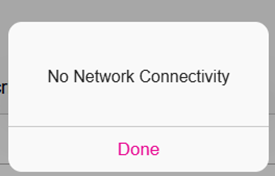
House Account payments won't work when the device is Offline. If attempting to make a House Account payment while offline, a pop-up with the message 'No Network Connectivity' appears.