Retail Back Office: Customers - House Account
Navigation: Sign into the Back Office for your Retail Store. Select Customers > House Account.
The House Accounts page appears, which displays a table of existing House Accounts containing the following columns: Customer, Account Number, Limit, Max Amount, Balance, and Actions (Edit or Delete).
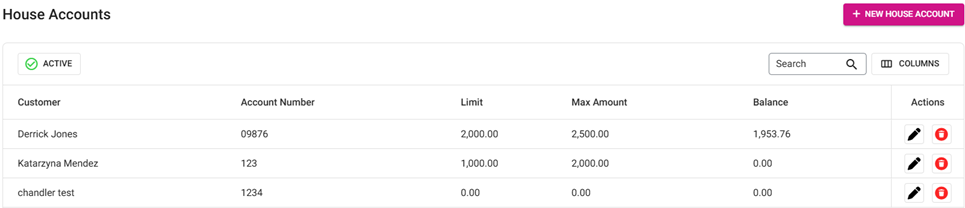
- Delete – When clicked, the Delete pop-up appears. Select Delete, and the Customer details will be deleted. Select Cancel to keep the Customer.
Create a New House Account / Edit an Existing House Account
- Click the + New House Account button at the upper-right (or to Edit an existing House Account, click the corresponding pencil icon under Actions).
- The New/Update House Account page appears. A new/updated House Account cannot be saved or updated (clickable Save / Update button) until all Mandatory fields are filled in.
- Customer: (Mandatory) Select a Customer from the dropdown list of Customers associated with this Retail Store.
- Account Number: (Mandatory) Enter an Account Number for the selected Customer (no number restriction).
- Balance: Enter the monetary Balance (in local currency, up to 2 decimal points).
- Enable Period Limit: If the toggle is Enabled (set to YES), select the Limit Period from the dropdown (Daily, Weekly, or Monthly) then enter the Limit Amount.
- If Weekly is selected, an additional dropdown will appear to Select the Day of the week (Mandatory).
- Allow Credit: If the toggle is Enabled (set to YES), any stored Credits will be available for using during House Account transactions (Refund type).
- Enable Max Limit: If the toggle is Enabled (set to YES), set the Maximum Limit Amount (Max Amount Limit) for House Account transactions (Mandatory).