Retail POS: Split Payments

Retail POS: Split Payments


  1. Log in to POS, add a Retail Item to an Order then click Payment.

  2. On the Payment screen: select the Split option. The various split options and corresponding values will appear (1/21/31/4, etc.) available for submitting payment.
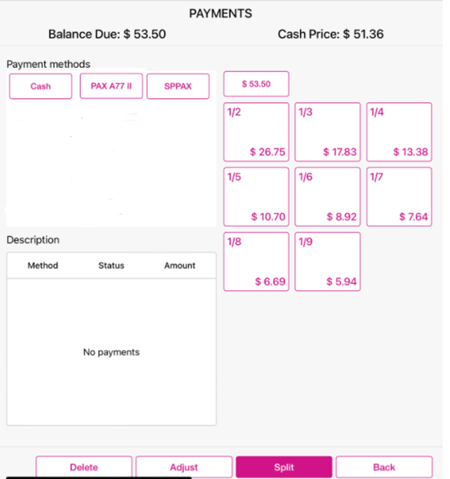

  3. Select a Split option. The Total Amount and Balance Due will be displayed based on the split (below example: 1/2 of Cash Price $51.36 is $25.68).
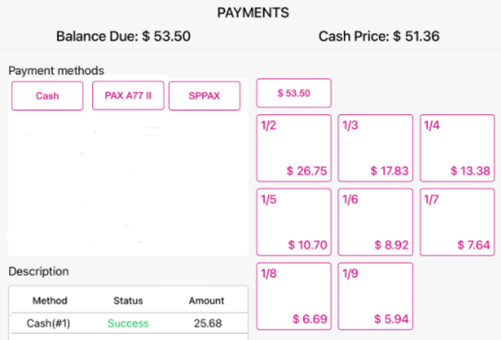

  4. When selecting another split combination for the Balance Due amount, the remaining amount will be split based on the selected split and the value will be displayed below the previous split payment submission.
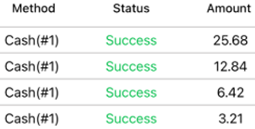

  5. Once payment has been completed, the Receipt will be moved to the Closed tab.


Notes

  1. Split option is available for all the payment methods.
  2. Split payment does not apply to layaway.
    • Related Articles

    • Retail Back Office: Enterprise - Reports

      Navigation: Sign into the Back Office. On the left-side Navigation Panel, click Enterprise. Select Enterprise Reports, and the dropdown contains options to access specific reporting Dashboards: Enterprise Reports Sale Report The Sale Report dashboard ...
    • Retail POS: Membership Payments

      Membership gives the ability to organize Customers into Loyal Customers. By using Membership Account, you will be able to organize and apply Tax exemptions to Members of the group, maintain the account balance, and issue allowances. Membership ...
    • Retail POS: Clover Payments

      Configuration in Back Office Admin On the Admin page, enable the Clover Payment toggle (set to YES). Configuration in Back Office Navigation: Select Settings > Payment > Payment Method Payment Method When creating a new Payment Method (or updating an ...
    • Retail POS: MPPG Payments

      Configuration in Admin Select Account > Stores, then select the Store for which the respective Payment needs to be enabled. Under the Store Settings section, enable the MPPG toggle. When you enable the MPPG credit card toggle, the MPPG details appear ...
    • Retail POS: Dual Price Payments

      Back Office Navigation: Log into BO, select a Store then select Settings > Payment Settings When enabling the Dual Price option, the Dual Price Disclaimer pop-up appears. Dual price calculations will be determined by the retail price. Dual pricing ...