Retail POS: MPPG Payments
Configuration in Admin
- Select Account > Stores, then select the Store for which the respective Payment needs to be enabled.
- Under the Store Settings section, enable the MPPG toggle.
- When you enable the MPPG credit card toggle, the MPPG details appear on the screen with the following fields: Customer Code, Username, Password, Payment Gateway and MCC.
- For Payment Gateway, select the processor TSYS, FDMS or Worldpay.
- Click Save.
- The Save button will be available once all mandatory fields are filled in.
Configuration in Back Office
- The Payment Method MPPG Credit Card must be enabled in Back Office [under Settings > Payments > Payment Method].
- When Admin MPPG toggle is Enabled, the MPPG payment appears in Payment Settings under Store Settings.
- When Disabled, the MPPG payment won’t appear under Payment Settings.
- Under Payment Type in Add Payment method, the MPPG Credit Card payment type must be added.
- After selecting MPPG Credit Card as a Payment Method: you can configure the following fields:
- Mobile - Payment Name, Code, Priority, Open Cash Drawer, Sale or Authorize Payment Type.
- Tablet - Payment Name, Code, Priority, Open Cash Drawer, Sale or Authorize Payment Type, Debit, and Exempt Surcharge
Payment Surcharge
You can select and set up Surcharge Type in Payment Surcharge.
Surcharge
- You can set up a customized Surcharge Name to appear on the POS Receipt.
- You can set up a Surcharge Percentage for MPPG payment.
Service Charge
- Service Charge is calculated based on card type for MPPG payments.
- Service Charge applies to Debit Card and Credit Card based transactions in BO settings.
- You are able to enter the Service Charge Percentage for MPPG.
- Service Charge applies to both Auth and Sale.
- The Service Charge for MPPG payments will be automatically deducted from the card, based on the Service Charge configured by the customer.
Dual Price
- The Reward will apply when the paying via Cash.
- Provide the Name, Dual Price Percentage, and Dual Price Tax Type for MPPG payments.
Batch Settings
- Set the Enable Auto Batch toggle to YES (Enabled). Then enter the Time the Batch will automatically run.
- If you enable the Print Batch Report, then the Batch report will be printed after submitting the Batch.
- Batch Submit Device - Select the device used to process Batch payments, including MPPG.
- For Default Batch Payment, select MPPG Credit Card.
- MPPG Credit Card is an option only when the MPPG Payment toggle is enabled in the Admin page.
- On the Batch screen: MPPG related payments will appear, and MPPG appears as a Type dropdown option.
- All Offline transactions (including MPPG) will appear under Batch in BO.
- Once Offline transactions are processed, all the processed transactions will be removed from the Batch screen under BO.
- If Offline transactions are available in multiple Nodes, all the Nodes must be online to process the Batch. If not, the Node only available in online will be batched.
- When the Process Offline button is clicked, the POS will not validate POS Online/Offline status, and a generic message will appear.
- Please make sure all terminals are Online to process the payments.
- If a specific terminal is Offline, then payments will not be processed.
- For Offline transactions, Process Batch will process the Offline payment and Batch them.
- Once you click Process Offline, the Offline receipts will be Processed and Batched, and the processed Offline receipts will disappear from the Batch screen. Checks taken in Online mode it will continue with the existing process.
Receipt
Note: The Receipt will support Star and Epson Printers and for both Text and Image. The following fields will be added to the receipt: Table & Seat Number, Server Name, Receipt Number, Transaction Type, Transaction Total, Transaction Currency, Transaction Number, Payment Type, Receipt Number, Masked Card Number, Date & Time, Card Holder Name, Card Name, Payment Type, and Auth No.
Managing the Payment
Hardware Settings
- In the Store's Admin settings, ensure the Payment Type MPPG is enabled (YES).
- On the Operations screen, select Hardware Settings.
- The Device Name is displayed in the Select A Bluetooth Card Reader section.
- When selecting the specific Device in POS, the device will be viewable as an option once it’s paired.
- Now you can select MPPG Credit Card payment for a sale, then you can either Swipe or Insert or Tap the Card on the terminal for processing the payment.
Payment
To Create a Sale
- Select the Payment
option.
- The Payment screen appears, where you can see all the Payment options enabled in Back Office (BO) settings.
- On the Card screen, there are 3 options: Manual, Clear, and Process, with the Amount to be paid appearing. You can manually enter the Card details - or swipe or tap or insert the Card (EMV).
- If no device is connected, the ‘Card reader is not connected’ message will be displayed.
- After payment completion, the Show Digital Receipt screen will appear if enabled in BO.
- On the Digital Receipt screen, you can choose whether the Receipt / Bill is to be sent via SMS, Email or Print. You can choose any one of the options then press Send Receipt.
- The Receipt will be sent based on the selection, then the Order screen appears.
- The Service Charge will apply to both Sale and Auth.
Sale
- When a Sale is placed, the Payment Request is sent to the Server and the Amount is credited to the Merchant.
- Under the Payment section, the Payment Method MPPG Sale appears only when the Payment Type is enabled for the Store.
- After selecting MPPG Sale as the Payment Method, click press Process Payment.
- The Card screen appears, displaying the Amount to be paid - with 4 options: Cancel, Manual, Clear, and Process.
- Manually enter the Card details or swipe/insert the Card in the Magtek device (EMV) to complete the payment.
Auth
- While creating Payment Method such as MPPG Credit Card, set Auth as the Payment Type.
- When the Sale is placed, the Payment will go to the Batch screen and when Batch Submit is clicked, all payments will be processed.
- In the Payment section, MPPG Auth appears under Payment Methods when the Payment Type is enabled for the Store.
- After selecting MPPG Auth as the Payment Method, click press Process Payment.
- The Card screen appears, containing the Amount to be paid - with 4 options: Cancel, Manual, Clear, and Process.
- Manually enter the Card details or swipe/insert the Card (EMV) to complete the payment.
- If the Device is not connected, the message ‘Card reader is not connected’ appears.
- Service Charge will apply to both Sale and Auth.
Payment Scenarios
- Insert - Select Process. Insert the card in the card reader device then click Process. The payment will be processed on the card.
- Swipe - Swipe the card in the card reader device slot. Payment will begin processing.
- Tap - Tap the card and payment will start processing. If this fails, select the Manual method.
- Manual Card Details - After manually entering the Card details, click Process. The payment will be processed on the card.
Payment Success
When Process is clicked, the system will send a response to the server, which will respond that the Payment is processed (or not processed).
- If processed: the payment will be added, and a Confirmation will appear.
- If not processed: the request will be cancelled, and you are returned to the Card screen.
Cancel
If Cancel (below the transaction loading graphic) is pressed while payment is processing, the system checks whether the payment request was successful.
- If payment is successful before the cancellation request: the payment will be included on the Check.
- If payment failed or the Amount wasn’t processed: the payment processing should stop, and you are reverted to the Payment screen with message 'Cancelled by host'.
Time Out
If Process is pressed and Payment processing started but a Card wasn’t swiped or inserted: the system will check for a Time Out period of 2 minutes. After 2 minutes, the optional error message ‘TIMEOUT’ appears.
Void
- Void applies to both Sale and Auth.
- You can void the payment after it's completed. You must Delete the payment on the Payment screen and the full payment will be voided.
- Partial void is not possible. All payments on the Receipt must be deleted to void.
- After closing the Check, the Receipt will be under the Closed tab. You can reopen the Receipt and select Void. You are redirect to the Payment page where the message ‘Payment made on this check. Can you return this to [Customer Name]’ appears.
- If Manual Submit is enabled, the Receipt will not close and the system will redirect to Payment from there you can delete the payment and void the receipt.
- If a customer would like to remove an item from an unpaid Order, press Void. The message ‘All orders are voided’ appears and retail items on the receipt will be voided.
- If the Order has already been sent to the Kitchen, press Void. TheVoid Reason pop-up appears, containing Reasons previously defined in BO. You can select any one of pre-defined Reasons, or manually type in Void Reason.
- After providing the Void Reason and pressing Add, the Retail Item(s) will be voided.
- Void applies to both Sale and Auth.
Batch
You can complete the Auth transaction by clicking Submit Batch.
- On the Batch screen: all the successful and offline transactions appear.
- MPPG Auth payments will appear on the BO Batch screen for batching.
- When the value is chosen in the Batch Submit Device in Back Office and you attempt to submit the MPPG Batch from the same Node, you will be able to submit the Batch without any intervention.
- When a Batch Submit Device is assigned in BO and you attempt to submit the MPPG Batch from a different Node, the warning message 'MPPG default batch device has been set to – [node]! Try batch device from specified device' appears.
Auto Batch
- After setting the Auto Batch Time in BO, all the successful payments will process, including offline transactions on the Batch screen.
- Auto Batch is available for MPPG payments.
Manual Batch
You must manually click Submit Batch.
- If there are offline transactions, you must first click Process Offline.
- Once all offline receipts are processed, then click Submit Batch and the rest will be processed.
- If Submit Batch is selected before processing offline receipts, the message ‘Run Process offline before batch’ appears.
- Under Default Batch Payment, MPPG is included only when the MPPG Payment toggle is enabled in Admin. You can select MPPG as the Default Batch Payment in BO.
- On the Batch screen, MPPG related payments appear along with MPPG as the Device.
- If the Batch is processing, the Submit button at the bottom of the screen will be disabled and the loading graphic will be displayed until the batch completes.
Batch Settle Date & Status
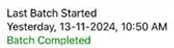
On the Batch screen: the Settle Date and Status of the Batch will appear at the bottom-left of the screen.
Batch Status
The below statuses will appear on the Batch screen:
- Batch Completed
- After the batch is processed, the Batch Completed status will appear at the bottom of the screen.
- The header Last Batch Started appears - with the Batch transaction's Day, Date and Time appearing below it, and the Status of the Batch below that.
- The Batch Completed status will appear in green.
- Batch In Progress
- If the Batch is processing, the Batch in Progress status will appear at the bottom of the screen.
- The header Last Batch Started appears - with the Batch transaction's Day, Date, Time, appearing below it, and the Status of the Batch below those.
- Batch In Progress status will appear in green.
- Batch Incomplete – Resubmit Batch
- If the batch processing is incomplete, the Batch incomplete – Resubmit Batch status will appear at the bottom of the screen.
- The header Last Batch Started appears - with the Batch transaction's Day, Date, Time, appearing below it, and the Status of the Batch below those.
- Batch incomplete – Resubmit Batch status will appear in red.
- Note: The Date and Time format configured in BO will be reflect on the Batch Settle Date. The Batch Status will appear for MPPG and Tempus payments.
Refunds
Refund
A sale was placed on a performed Close Day and the Customer wants a Refund on the payment.
- Navigate to the Closed Receipt screen.
- Enter the Receipt's Date and/or Receipt Number.
- Press Search, and it will appear.
- Select the Receipt then press Return. The receipt will be opened, and select Refund Item or Refund All to refund a single item or a whole receipt.
- On the Refund pop-up that appears with the following information:
- Refund Reason.
- The Amount to be refunded (with the number pad).
- The Customer (add if necessary).
- The Return By options.
- After providing a Reason, select the Payment. A pop-up with the message ‘Do you want to refund?' and Yes and No options appears.
- If you select Yes, the ‘Refund Success’ confirmation pop-up appears.
- If you select No, you remain on the same screen.
- If a Refund has already been issued, the message 'Receipt is already refunded’ appears.
- This also applies to Exchange and Layaway.
Offline Transaction
When the network is unavailable but the Allow Offline Payment toggle is enabled, making a Sale and processing the Payment will automatically enable the Offline Mode toggle.
If the Allow Offline Payments toggle is enabled and Offline Mode is disabled:
- If the network went to an offline state during payment processing, the device automatically moves to Offline Mode as the Offline Mode toggle was automatically enabled and payment will be taken offline, and the following notification appears at the bottom: ‘Your device is offline. Payments will be taken in offline mode. Make sure to authorize your offline payments Next network connectivity check will be done after 15mins’.
- During payment processing: if there is any network failure, the offline payment will be processed and the sale Payment will go into Batch. The below scenarios outline payment processing conditions:
- If Allow Offline Payments is disabled and Offline Mode toggle is disabled, the system will not be able to take any offline payments.
- If Allow Offline Payments is enabled and Offline Mode toggle is enabled, the following notification appears: ‘Your device is offline. Payments will be taken in offline mode. Make sure to authorize your offline payments Next network connectivity check will be done after 15mins’.
- If Allow Offline Payments is disabled and Offline Mode toggle is enabled, the following notification appears: ‘Your device is offline. Next network connectivity check will be done after 15mins’. Payments will not be processed no offline receipt will be processed but remaining offline functionality will work.
- When the system comes back online: payments taken in offline mode will be noted by light red highlight, which indicates these Checks must be processed offline and then batched. Failure transactions are marked by a dark red highlight.
- When there are offline transaction Checks, click Submit Batch. The system will display a pop-up with the message ‘Run Process offline before batch’.
- When Process Offline is pressed, any successful transactions (those without a colorized highlight) can be batched. If all the offline transactions are processed and there are no Checks to be processed offline, then the Process Offline button will be greyed out.
- Once the offline process is completed, you can Submit the Batch for other Checks.
- Offline transactions don't allow for Tip adjustment.
- After the Device comes online, the Receipt must be visible on the BO Batch screen.
- For processing offline Checks: all nodes must be in online mode. Otherwise, the POS will process only the specific Node Receipts which are online.
Tokenization
Navigation: Log into the BO for your Store then select Settings > Store > Payments
In Back Office, you must configure the Service Type for Tokenization in Payment Settings.
- When Tokenize the Credit Card Toggle is set as No, the card details will not be saved under customer profile.
- When Tokenize the Credit Card Toggle is set as Yes, the card details will be customer profile.
Implementation in POS
- After placing an Order: on the Payment screen select MPPG payment method and pay using Card in Magtek devices.
- Attach a customer to the Order. A Search bar is available to search customer.
- If the customer uses new card for Payment, a pop-up with the message 'Do you want to Tokenize your card' with Yes and No options.
- If Yes, card details should be attached to the customer. In Customer profile screen under the credit card tab the card number will be displayed as shown below.
- If No, payment will be made but the card will not be saved.
- If a Customer is not attached to the Order, but the user clicks Yes on the Tokenize pop-up: another pop-up appears for entering the Customer's details.
- First Name
- Last Name
- Phone Number
- Email
- Click Save button customer details will be saved & attached to the order.
- If Cancel, the pop up will be closed.
- If Save, without providing Phone number and Email, the error message 'Enter Email ID or Mobile number' appears.
- Once again, the same customer orders and makes payment using the same card. The Choose Card pop-up appears which displays all saved cards.
- If the same customer orders and make payment using different card which is not saved in customer profile, the 'Tokenize' pop-up appears with Yes and No options.
- If Yes, card will be saved for the customer.
- If No, payment will be made & card will not be saved.
- When the same customer orders and makes payment by any one of the saved cards. On the Choose Card pop-up: all cards including the most recently added one appears, and you can select any one of the cards to make payment by clicking Pay.
- When customer clicks the New Card button, they must swipe the card again, the 'Tokenize' pop-up appears with Yes and No options and the process continues as shown above.
- There is no restriction on the number of cards that can be added to a Customer's profile.
Receipts
- The below Receipts are supported for Star and Epson Printers and for both Text and Image.
- Only the last 4 digits of the Credit Card used for payment will be displayed on receipts.
- These Receipts apply to Frontend, Merchant Copy, Customer Copy and Itemized receipts.
Template 1
Template 2
Refund All
Refund 1 Item
Exchange
Void Template 1