POS: Tipping Options
Back Office
Apply Tip to Sales Creator or Closer
On the General Settings page: the Check Owner option determines who will own a Sale, including any applied Tip:
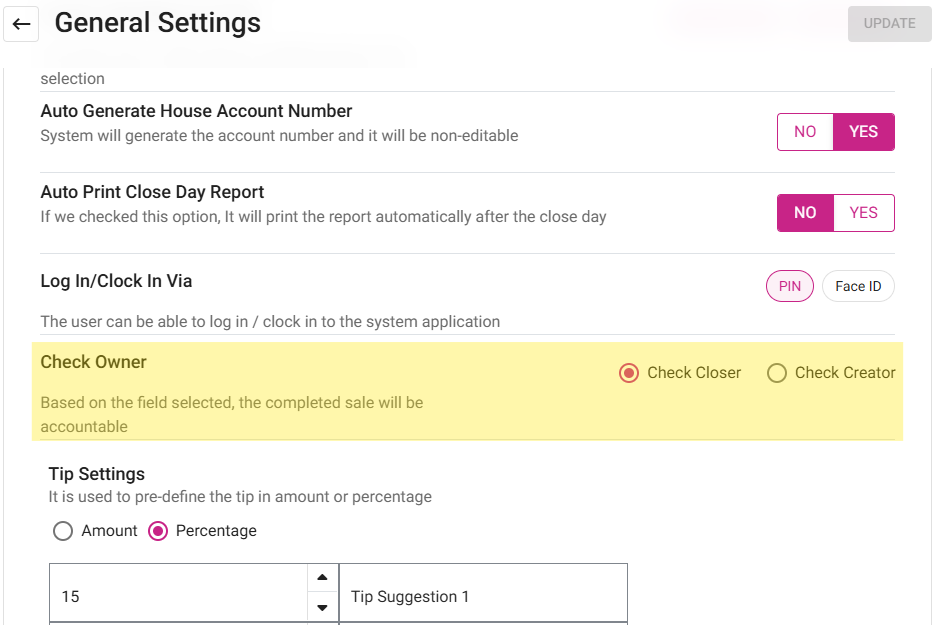
- If Check Closer is selected, the Tip is applied to the person who closed the Check.
- If Check Creator is selected, the Tip is applied to the person who created the Check.
Sale Summary Report
When selecting a Check Number:
Sale Recap Report
POS
For the Check Owner, on the General Settings page in BO:
- If Check Creator is selected: if an Employee opens a Check and Tip is applied to the Check which is Active, then another Employee logs in and closes the Check - the Tip on the Check will be credited to the Employee who opened the Check.
- If Check Closer is selected: the Tip will be applied to the Employee who closed the Check.
- It will impact the Sale Summary and Sale Recap reports.
- This scenario is compatible with all Service Types except QSR.