Retail Back Office: Additional Report Settings

Retail Back Office: Additional Report Settings


Navigation: Sign into the Back Office and select a StoreOn the left-side Navigation Panel, click SettingsOn the Settings page, under Reports click Additional Settings.
          

The Additional Settings page contains multiple toggles for fields to display on reporting.
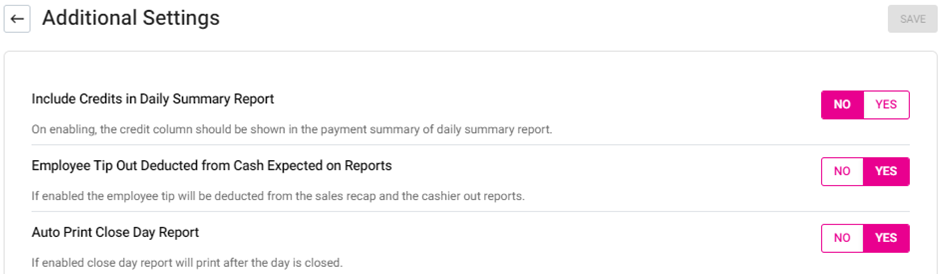
  1. Include Credits in Daily Summary Report – If Enabled, the Credit column will appear on the Payment Summary of the Daily Summary Report. If Disabled, it won’t appear.
  2. Auto Print Close Day Report – If Enabled, the Auto Print Day Report will be automatically reset at the end of the day. If Disabled, it will continue to generate reports regardless of the Close Day.

  3. When all toggles are set, click Save. The ‘Additional Settings Saved Successfully’ confirmation message appears.

  4. Once saved, be sure to sync with POS by clicking the Publish button at the top-right of the page (horizontal line atop an upward facing arrow).
    • Related Articles

    • Back Office: Inventory Report

      Log into the Back Office and select a Store. Under Reports > Inventory Reports. On the Inventory Reports dashboard, select a tab. Master Stock Purchased Item Consumption Log Compare Inventory Count Sheet COGS Adjust Inventory Inventory Item History ...
    • Retail Back Office: Employee Reports

      Navigation: Sign into the Back Office and select a Retail Store, then select Reports > Employee The Employee Reports page displays a comprehensive set of data on the activity of the Store's employees, with tabs for the following: Attendance Role ...
    • Reatil Back Office: Inventory Reports

      Navigation: Log into the Back Office for your Retail Store, then select Reports > Inventory Reports. The Inventory Reports page is organized into multiple tabs: Master Stock Purchased Item Consumption Log Compare Inventory Count Sheet COGS Adjust ...
    • Retail Back Office: Products/Items - Category

      Navigation: Log into the BO for your Store then select Products/Items > Category. Create a New Category / Update an Existing Category Create a new Category by clicking + New Category. Or update an existing Category by clicking the corresponding ...
    • Retail Back Office: Products/Items - Subcategory

      Navigate: Log into BO for your Store then select Products/Items > Subcategory Create a New Subcategory / Update an Existing Subcategory Create a new Subcategory by clicking + New Subcategory. Or update an existing Subcategory by clicking the ...