Retail Back Office: Inventory - Inventory Item

Retail Back Office: Inventory - Inventory Item


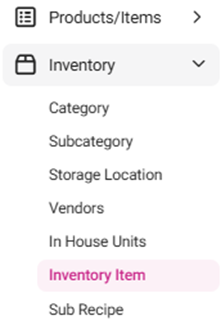
Navigation: Sign into the Back Office for your Retail Store, then select Inventory > Inventory Item, then select the Retail Items tab.
The Retail Items tab displays a table along with the Total Value On Hand. The table contains the created Retail Inventory Items with the following columns:
  1. Tip: Make sure you have applied settings for the following Inventory pages: CategorySubcategoryStorage LocationVendors and In House Units.

  1. Name – Name of the inventory item.
  2. SKU Code – The SKU Code of the inventory item.
  3. Category – The chosen category for the inventory item.
  4. Par Level – The entered par level for the inventory item.
  5. Latest Received Price/Unit – Displays the latest unit price for this store (configured in Enterprise > Inventory Costing).
  6. Purchase Unit – The chosen purchase unit for the inventory item.
  7. Selling Price/Unit – The selling price of the inventory item.
  8. Quantity on Hand – The overall quantity on-hand (Parent and Child).
  9. Cost Per Unit – The value of individual items (Parent and Child).
  10. Value on Hand – The price of the stock available.
  11. Actions – Buttons for Edit (pencil) and Delete (trash can).
    1. Delete– The Delete pop-up including the message ‘Are you sure you want to delete this item’ appears, with Cancel and Delete options.
      1. Select Delete and the Inventory Item is sent to Inactive status with a ‘Inventory Item inactivated successfully’ confirmation message appearing.
      2. Select Cancel, and the Inventory Item is kept in Active status.
    • Related Articles

    • Retail Back Office: Inventory - Sync Inventory

      Navigation: Sign into the Back Office for your Retail Store, then select Inventory > Sync Inventory. The Sync Inventory page appears, highlighting the benefits available to a fully synced inventory: Create purchase orders, Receive low stock email ...
    • Retail Back Office: Inventory - Adjust Inventory

      Navigation: Sign into the Back Office for your Retail Store, then select Inventory > Adjust Inventory. The Adjust Inventory screen appears, with the Retail Item tab. Buttons for Download Template, Upload Inventory Count, and + Bulk Adjustment appear. ...
    • Retail Back Office: Inventory - Purchases

      Navigation: Sign into the Back Office for your Retail Store, then select Inventory > Purchases. The Purchases page appears, with sub-page options for Purchase Templates, Purchase Orders, Purchase Invoices, Received Items, and Expired Purchase Item. ...
    • Retail Back Office: Inventory - Adjust Inventory Reasons

      Navigation: Sign into the Back Office for your Retail Store, then select Inventory > Inventory Reasons. The Adjust Inventory Reasons screen appears, with the created Reasons appearing in table format containing the following columns: Name – Displays ...
    • Retail Back Office: Inventory - Category

      Navigation: Sign into the Back Office for your Retail Store, then select Inventory > Category The Category page appears, including the Total Value on Hand, along with a table containing the existing Categories containing with the following columns: ...