Retail Back Office: Revenue Center Report Settings
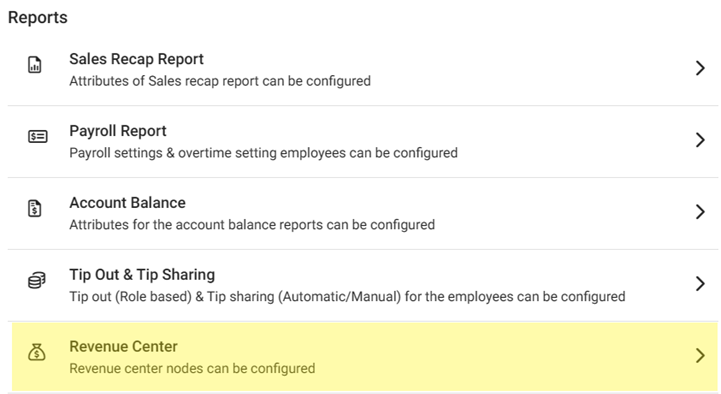
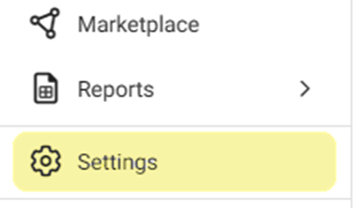
Navigation: Sign into the Back Office for your Retail Store. On the left-side Navigation Panel, click Settings. On the Settings page, under Reportsclick Revenue Center.
Create or Update a Revenue Center
Click + New Revenue Center to create a new one, or click the corresponding pencil Icon to update an existing one or click the Trash Can to delete it.
On the New (or Update) Revenue Center pane:
Enter the Name of the Revenue Center.
Select the Node(s) attached to the Center on the dropdown.
When complete, click Save (or Update) at the bottom-right of the pane.
You are returned to the main Revenue Center page where a confirmation banner appears at the upper-right. If a Revenue Center was created, it will appear as a new row in the table, with the entered Name and selected Nodes.
Delete a Revenue Center
Identify the Center to delete, then under the Actions column click the corresponding trash can icon.
On the Delete pop-up that appears, click Delete to confirm deleting the Center.
Select Cancel / X Close to return to the Revenue Center page and keep the Center.
You are returned to the Revenue Center page, where the Center has been deleted and the confirmation banner appears at the upper-right.
Navigation: Sign into the Back Office for your Retail Store, then select User Management > Roles The Roles page appears, which displays a table of the currently existing Roles within this Retail Store, with the following columns: Create a New Role or ...
Sign into the Back Office and select a Store. On the left-side Navigation Panel, click Settings. On the Settings page, under Reports click Revenue Center. On the Revenue Center page, click + New Revenue Center to create a new one, click the Pencil ...
Navigation: Log into the Back Office for your Retail Store, then select Reports > Revenue Center The Revenue Center Reports page is used to organize all the different transactions at the Retail Store based on the POS Node (which are defined in ...
Displays a breakdown of the Store’s Revenue. The Revenue Center is used to organize all the different transactions at the store based on the POS Node (which are defined in Revenue Center settings) and Shift (set on the Store Hours setting page). ...
Background in BO Navigation: Login to BO, select a Store, then select Settings > Revenue Center In BO, you can set a new Revenue Center by providing the Name and Node details Enter the Name of the new Revenue Center. Select the Node(s) from the list ...