Retail Back Office: User Management - Roles
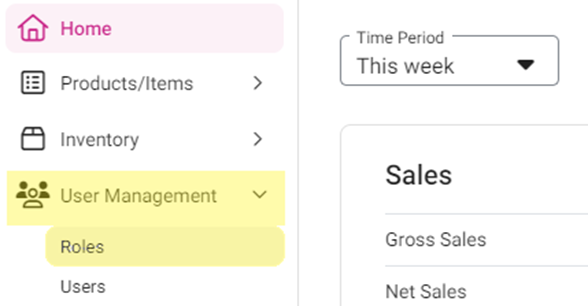
Navigation: Sign into the Back Office for your Retail Store, then select User Management > Roles
The Roles page appears, which displays a table of the currently existing Roles within this Retail Store, with the following columns:
Create a New Role or Update an Existing Role
- Click + New Role at the upper-right (or click the corresponding three dots [•••] then Edit under Actions). The New/Update Role pane appears.
- Under General: enter the following:
- Name – (Mandatory) Maximum of 25 characters.
- Priority – (Mandatory) Any Priority numbers of existing Roles won’t appear as options.
- Role ID – (Optional) Numbers and letters are accepted, with maximum of 25 characters.
- Select the Role’s permissions: click each section and select the boxes you want enabled for the Role to have that access (some boxes will automatically be checked). Click Select All to check all boxes within the dropdown section.
Back Office
- RETAIL CONFIGURATION – Access to Retail Store configuration in POS
- GIFT CARD - Permission to access Gift Cards and Reimbursement for the customers
- PRINTER SETTINGS - Permission to view Printer settings
- TAX SETTINGS - Permission to access Tax settings for products and items in BO
- STORE SETTINGS - Permission to access Changes from Store settings
- STORE INFO - Permission to access Store info and details of the store
- REPORT - Permission to access Reports from BO
- DISCOUNT SETTINGS - Permission to access Discount settings configuration for Retail Items
- INVENTORY SETTINGS - Permission to access Inventory settings and management
- CUSTOMER - Permission access to Customer details in BO
- USER MANAGEMENT - Access to User Management details (Create Roles / Users / Tip Adjustment / Forced Punch In/Out)
- DISABLE BACK OFFICE LOGIN – Disabling access to BO login.
- BATCH - Permission to Batch payment settings
- LOYALTY POINT ADJUSTMENT - Permission to Loyalty Points adjustment for the customer
- SHOW INVENTORY COUNT IN ADJUSTMENT - Permission to inventory adjustments made for the customer
POS
- CREATE ORDER – Permission to create an order from POS
- VOID ITEM – Permission to void a sale
- DELETE UNORDERED ITEM - Permission to void an Item or Check that has not yet been sent to the kitchen
- CC PAYMENT – Permission to process Credit Card payments
- GC PAYMENT – Permission to process Gift Card payments
- HA PAYMENT – Permission to process House Account payments
- PAY CASH – Permission to pay cash to complete a sale
- TAX EXEMPT – Permission to process a tax exemption for an item when completing a sale
- OPEN ITEM – Permission to create an Open Item in POS for products not pre-programmed in the Back Office (BO)
- EMPLOYEE DISCOUNT – Permission to give an Employee Discount for a sale
- GIFT CARD ISSUE – Permission to issue a Gift Card to a new customer
- DISCOUNT – Permission to apply a Discount made for a sale
- GRATUITY – Permission to apply a Gratuity for a sale access
- ITEM SERVICE CHARGE EXEMPT – Permission to exempt an Item Service Charge for a Retail Item
- OPEN CASH DRAWER – Permission to access the cash drawer
- OPEN ALL RECEIPTS – Permission to open all receipts (Open, Active, Closed, Refund)
- RESTRICT RECEIPT SUMMARY – Permission to Restrict Receipt Summary.
- OTHER PAYMENT – Access to the Other Payment option
- TRANSFER BETWEEN OWN RECEIPTS – Access to transfer between user’s own receipts
- TRANSFER BETWEEN ALL USERS RECEIPTS – Access to transfer between all users’ receipts
- VIEW ALL RECEIPTS – Access to view all receipts
- ALLOW RECEIPT STATS PERMISSION – Access to view the Receipt Status screen
- LOG OFF AFTER EACH SALE – Log off after each sale checkbox will be available. You selecting the checkbox, After every sale the system will be logged off upon enabling for the respective role. You deselect the checkbox, Log off after each sale access will not be given to the respective roleLOG OFF AFTER EACH
- MEMBERSHIP ACCESSIBILITY – Access to customers’ Membership information
- ALLOW OPEN RECEIPTS IN ANOTHER POS AT THE SAME TIME – Permission to open the same Check in multiple POS systems simultaneously while being active on one POS
- VIEW OTHERS RECEIPT – Access to view others’ receipts
- APPLY STORE CREDIT – Access to apply Store Credit (Call Center, WebPOS)
- REDEEM STORE CREDIT – Access to redeem store credit towards a sale
- OFFLINE PAYMENT – If enabled (default) (selected, pink with check mark), the Role will have access to enable offline payments in POS. If disabled, the Role won’t have access to enable offline payments in POS and Offline Payments won't be allowed in POS operation.
POS Operations
- OPEN TILL – Permission to open the till for cash handling
- HOLD TILL – Permission to hold the till without making any payment or transaction
- CLOSE OWN TILL – Permission to close their own till
- VIEW/CLOSE ALL TILL – Permission to view/close all till
- CASH DROP – Permission to drop Cash from the Cash Drawer
- PAY IN/OUT – Permission to Add or Remove Cash from the till
- OPEN CASH DRAWER – Permission to Open the Cash Drawer under Till Management
- PRINT CASH LOG – Permission to the Print Cash Log
- VOID RECEIPT – Permission to Void Checks
- RE-OPEN RECEIPT – Permission to Re-Open Checks from Payment access
- POS SETTINGS – Permission to configure POS settings
- CLOSE OWN CASH OUT – Permission to perform their own Cashier Cash-Out
- CLOSE ALL CASH OUT – Permission to Cash Out for all Employees
- CLOSE THE DAY – Permission to Close the Day
- CLOSE BATCH – Permission to Close a Batch Payment
- HARDWARE SETTINGS – Permission to configure Hardware settings
- OPERATIONAL REPORTS – Permission to the Data and Details of Operational Reports
- REFUND – Permission to issue a Refund for a Check
- REPRINT RECEIPT – Permission to reprint a Check in POS
- RESTRICT REPORT ON ACTIVE RECEIPT– Will not have permission to see Active Checks on POS
- BLIND AUDIT – The Balance will not be shown
- SHOW REPORT AFTER BLIND AUDIT – Will not be able to view the report
- ADJUST TIME CLOCK – Permission to Adjust the Time Clock
Report Access
- Select the checkbox of each option to have access to that Report.
- SALES
- TRANSACTION REPORT
- GIFT CARD REPORT
- DISCOUNT REPORT
- VOID REPORT
- PAID IN/OUT
- EMPLOYEE REPORT
- HOUSE ACCOUNT REPORT
- BATCH REPORT
- REFUND REPORT
- TILL REPORT
- COMPARISON REPORT
- CUSTOMER PREFERENCE REPORT
- DAILY TENDER REPORT
- TAX REPORT
- MEMBERSHIP REPORT
- ACCOUNT BALANCE REPORT
- REVENUE CENTER REPORT
- DAILY SUMMARY REPORT
- AUDIT LOG REPORT
Dash Board
- Select the checkbox of each option to have access to that Dashboard
- NET SALES – Permission to the Net Sales Dashboard
- TAX – Permission to the Tax generated from the sales
- TRANSACTION – Permission to the Transactions made from the store
- CUSTOMER INFO IN SALES DASHBOARD – Permission to the Customer info in the Sales
- DISCOUNT – Permission to the Discount dashboard
- REFUND – Permission to the Refund sales dashboard
- LABOR – Permission to the Labor dashboard
- COGS – Permission to the Cost Of Goods Sold (COGS) dashboard
- SPLH – Permission to the Sales Per Labor Hour (SPLH) dashboard
- TOTAL ENROLLMENT – Permission to the Total Enrollment of the employees dashboard
- REWARD POINTS – Permission to the Reward Points dashboard
- ACCUMULATION POINTS – Permission to the Accumulation points access dashboard
- OLD VS NEW CUSTOMERS – Permission to the Old vs New customers dashboard
- TOP FIVE CUSTOMERS – Permission to the Top Five Customers dashboard
- TOP FIVE RETURN CUSTOMERS – Permission to the Top 5 Return Customers dashboard
- FEEDBACK – Permission to the Feedback data dashboard
- CUSTOMER FEEDBACK – Permission to the Customer Feedback dashboard
- TOTAL SALES – Permission to the Total Sales dashboard data for the Store
- AVERAGE AMOUNT – Permission to the Average amount for the store dashboard
- AVERAGE TIME – Permission to the Average time of the employee dashboard data
- RECEIPT VS EMPLOYEE – Permission to the Receipts made by the Employee in comparison to Employee dashboard
- LABOUR VS SALES – Permission to the Labor of the employee vs sales made by the Employee dashboard
- EMPLOYEE VS TIP – Permission to the Employee vs Tips generated by the Employee dashboard
- EMPLOYEE VS NETSALES – Permission to the Employee vs Net Sales of the Store data Dashboard
- RETENTION RATION – Permission to the Retention Ratio of the Customer dashboard
- OPEN TO CLOSE RECEIPT – Permission to the Open Receipt to Close Receipt dashboard
- ACTIVE RECEIPT – Permission to the Active Receipt dashboard data
- AVG RECEIPT – Permission to the Avg Receipt dashboard data
- AVG COVER – Permission to the Avg Cover dashboard
- GROSS SALES – Permission to the Gross Sales dashboard
- TOTAL VOLUME – Permission to the Total Volume dashboard
- NET VOLUME – Permission to the Net Volume
- AVAILABLE BALANCE – Permission to the Available Balance dashboard
- PENDING BALANCE – Permission to the Pending Balance for the Store
Cash Drawer
- OPEN CASH DRAWER ON HITTING SET/CLOSE TILL – Permission to open the Cash Drawer upon closing the till
- CASH DRAWER FOR CASHIER OUT – Permission to open the Cash Drawer for cashing out the end of the Sale Amount
- CASH DRAWER RESTRICT PAYMENT – Cash Drawer permission will be revoked for the Role. It prevents the user to close the sale or accept any form of payment.
- When the Role’s permissions are set, click Save at the bottom-right of the pane or (Update if you’re Editing an existing Role). You are returned to the main Roles page.
- When saving a new Role, it will be added as a row in the Roles table.