Retail POS: Adding a Customer to an Order
Add Customer
After selecting an Order Type, the Add Customer screen appears, where you can add a Customer By Phone or By Name.
By Phone (Default)
By Name/Email
By Phone (Default)
Under BY PHONE, the Search bar is available for you to find a Customer by entering their Phone Number.
- Start entering a phone number using the Numpad, and suggestion(s) in the form of the Name of the Customer and their phone number will appear.
- If a Customer is not found, the message 'No Results' will appear along with an X to clear the entered numbers.
- You must enter a minimum 3 digit number for suggestions to appear
- Suggestions will be filtered based on the numbers entered when searching.
- To configure which database is searched: in the Back Office for your Store, navigate to Settings > Store > Application Settings. For the Store Level Customer toggle:
- If enabled, search will be conducted on the Store database with suggestions based on that.
- If disabled, search will be conducted on the Account database with suggestions based on that.
- With a number entered and no Customer appearing below, add the new customer by clicking + Add Customer below the numpad.
- On the Customer Profile that appears, the Phone Number entered in the search box will automatically populate in the Phone field so you won’t have to type the number again.
By Name/Email
Under By Name/Email, the Search bar is available for you to find a Customer by entering their Name or Email.
- When the Search bar is clicked, a new page appears that displays a keyboard.
- Begin typing the name or email of the customer, and the + Add Customer button will be clickable. Also, suggestions will appear in the form of the Name and Phone Number of the Customer.
- If a Customer is not found, the message 'No Results' will appear along with an X to clear the entered numbers.
- You must enter a minimum 3 digit number for suggestions to appear
- Suggestions will be filtered based on the numbers entered when searching.
- To configure which database is searched: in the Back Office for your Store, navigate to Settings > Store > Application Settings. For the Store Level Customer toggle:
- If enabled, search will be conducted on the Store database with suggestions based on that.
- If disabled, search will be conducted on the Account database with suggestions based on that.
- After clicking + Add Customer: the Customer Profile screen appears, with the Name field that is automatically populated by the Name entered in the search box.
Customer Profile Screen
When adding a Customer from either By Phone or By Name, the Customer Profile screen appears, where the below fields must be entered:
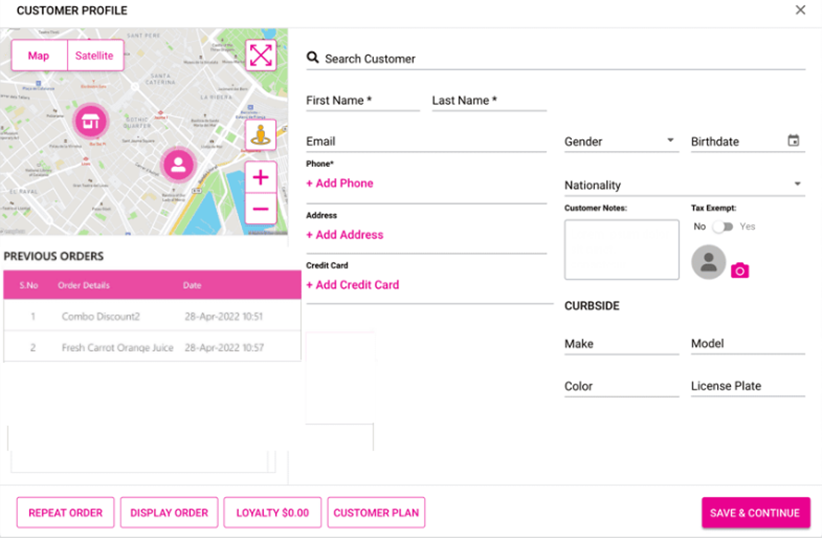
- Search Customer – User should be able to search customer using this field:
- See above for how searching functions
- First Name and Last Name (Mandatory) – Enter first name and last name of the customer (if not already populated).
- Email – The Email ID of the customer.
- Phone (Mandatory) – The phone number of the customer. When clicking Add Phone, the Add Phone pop up appears, with the pop up number pad to enter the customer number. You can clear the number entered by clicking clear option, or close the pop up. Click Add Phone to attach the phone number to customer.
- Address – The Address of the customer. Click Add Address. A screen appears for searching for an address. Begin typing an address, and once suggestions appear the + Add Address button will be clickable.
- Select an address then click + Add Address. A pop-up displaying the full selected address appears:
- Address Line 1 – Address of the Customer
- Address Line 2 (Optional) – If user want to add another address this filed is optional.
- City – City of the customer
- State – State of the Customer
- Zip code – Zip Code of the customer
- Country – Country of the customer
- Delivery Notes – If there are any delivery notes it should be displayed in delivery notes.
- Cancel – Cancel button to close the pop up.
- Click Save Address. The address will be saved to the customer and will be automatically populated in the respective fields in the ADD ADDRESS pop up.
- Credit Card – Credit card details of the customer.
- Click Add Credit Card. The Add Credit Card pop up appears, containing the following fields:
- Card Number – Number of the card
- Name on Card – Name on the Credit card
- Expiration Date – Expiry date of the credit card
- Security Code – Security code on the credit card
- Zip Code – Zip code on the credit card
- Cancel – Close the pop up
- Add Card – Card details will be attached to the customer.
- Click Save Card. The card will be saved to the Customer's profile.
- Gender – Dropdown to select the customer's gender.
- Birthdate – The Birthday of the Customer (Calendar view).
- Nationality – A dropdown to select the nationality of the customer.
- Customer Notes – Enter any additional details of the customer.
- Curbside – Details of the vehicle used when picking up the customer's orders:
- Make – Year of the Vehicle
- Model- Model of the vehicle
- Color - Color of the vehicle
- License plate – License Number of vehicle
- Tax Exempt – Whether the customer is Tax Exempt (Yes or No).
- Image – Filed to attach the photo of the customer.
- Previous Orders – Previous orders from the Customer
- Map – Map should be displayed in the customer profile, with options for:
- Map & Satellite
- Expanding the map
- Street View Option
- Zoom in & Out of the will be provided
- Store & Customer location will appear on the map
- Repeat Order – Provides to option to resubmit a previous order from the customer.
- Display order - Displays orders made the customer.
- Loyalty – Loyalty points of the customer will be displayed.
- Customer Plan- Customer plan of the customer will be displayed.
- Save & Continue – All the details of the customer will be save and customer will be added to the order.
- Close – When clicked, the customer profile screen will close.
Return
From the Customer Profile screen
- Select a Receipt then select Return to perform a Refund or Exchange.
- The Order screen appears where the customer will be automatically added to the Receipt.