Retail POS: Order Screen
Removing Items
On the main Orders screen, each selected item will be accompanied by a red x which if clicked will remove the item from the Order screen before payment. If the red x is selected after submitting payment, the message 'Cannot delete ordered retail item' appears.
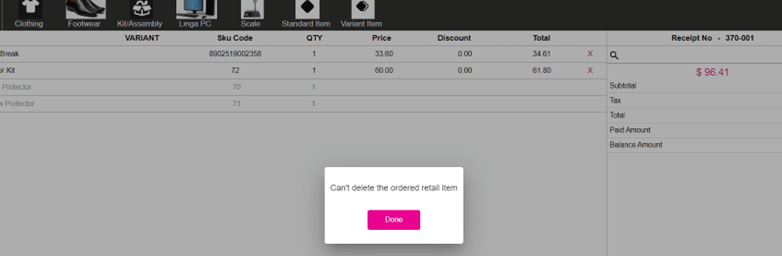
Cart
Located on the right side of the Order screen, it displays the Receipt No (Number) and the below values will be based on the items in the cart. Also the Search box will be available for searching Items/Categories/Subcategories on the Order screen.
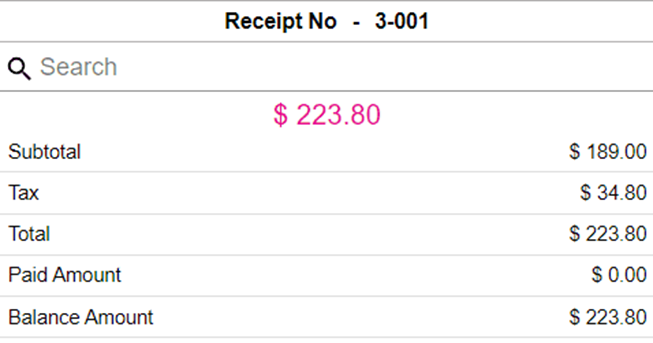
- Subtotal - Subtotal of the Receipt.
- Tax – Tax accumulated on the Receipt.
- Total - Total including Tax (but excluding Discount)
- Paid Amount - Amount paid by customer will be displayed.
- Balance Amount - If there is any remaining amount the same will be shown.
No Inventory
If an item on the order screen isn't available in inventory:
- Once the item is added to Cart, a pop-up with the message 'Not Enough Inventory available. Available inventory: [Count)] Click to Continue Anyway' appears.
- The Click to Continue Anyway will only appear when the Allow Negative toggle in BO Retail settings is enabled.
- Upon clicking Continue Anyway, the item will be added to the cart. Besides having insufficient quantity without confirmation, you cannot proceed you must either remove the item or click Continue.
Notes:
- On the Order screen in POS, all the selected items will be listed.
- For the Kit/Assembly item, the parent name appear and below it the items mapped to the Kit/Assembly item appear
- The price of the combo item mapped in the Kit/Assembly item won't appear - only the Item, Variant, SKU Code, and Qty will appear.