Retail Back Office: Customer Display Screen (CDS) Addon Settings

Retail Back Office: Customer Display Screen (CDS) Addon Settings


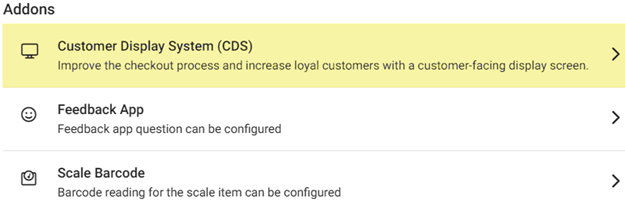
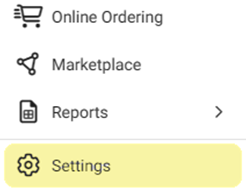
Navigation: Sign into the Back Office and select a Store. On the left-side Navigation Panel, click Settings. On the Settings page, under Addons click Customer Display System (CDS).
          

The Customer Display System (CDS) settings screen enables you to customize the look, theme and text that appears on the CDS.

  1. Show Advertisement – If Enabled (YES), the app will display ads in CDS. If Disabled (NO), ads will not appear on the CDS.


  2. Customer Profile – If Enabled (YES), the customer profile will display in CDS. If Disabled (NO), the customer profile will not appear on the CDS.


  3. Choose Theme – Select the Theme from the dropdown (Dark or Light).
    1. Determines how the CDS POS will appear to the customer.


  4. Discount Text – Enter a message meant as a reminder of discounts to the customer. The message cannot exceed 160 characters.


  5. Get Number Text – Enter a message meant for gathering customer account info. The message cannot exceed 160 characters.


  6. Loyalty Text – Enter a message meant to remind the customer of a loyalty account. The message cannot exceed 160 characters.


  7. When ready, click Save at the upper-right (across from the CDS title). The confirmation banner appears and the Save button turns grey.
    1.  If no updates have been made, the button will be greyed out and unable to be clicked.
    • Related Articles

    • Back Office: Customer Display Screen (CDS) Add On Settings

      Sign into the Back Office and select a Store. On the left-side Navigation Panel, click Settings. The Settings page appears. Under Addons click Customer Display System. The Customer Display System screen appears. Show Advertisement toggle – If Enabled ...
    • Retail POS: Customer Display Hardware Settings

      On the Hardware Settings screen, select the Card Reader tab. The screen displays the device name of the Customer Display which is connected to the POS. Back Office License Settings Navigation: Log into Enterprise, then select Settings. Under Licenses ...
    • Retail Back Office: Feedback App Addon Settings

      Navigation: Sign into the Back Office and select a Store. On the left-side Navigation Panel, click Settings. On the Settings page, under Addons click Feedback App. The Feedback App page contains the option to add up to 2 Questions with up to 4 ...
    • POS: Operation - Customer Display Hardware Settings

      Back Office CDS Back Office Settings For more information, see the Back Office CDS Settings Knowledge Article. License Settings Navigation: Log into Enterprise, then select Licenses > License Settings To integrate CDS with the POS of a Store: the ...
    • Retail Back Office: Scale Barcode Addon Settings

      Navigation: Sign into the Back Office for your Retail Store. On the left-side Navigation Panel, click Settings. On the Settings page, under Addons click Scale Barcode. The Scale Barcode screen contains a table with columns for Name, Prefix/Variable ...