Retail Back Office: Daily Summary Report
Navigation: Sign into the Back Office for your Retail Store, then select Reports > Daily Summary.
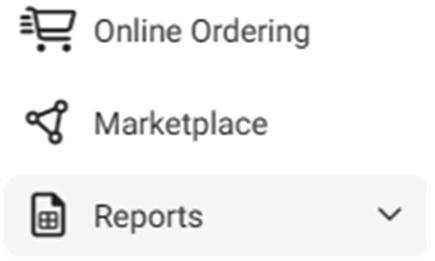
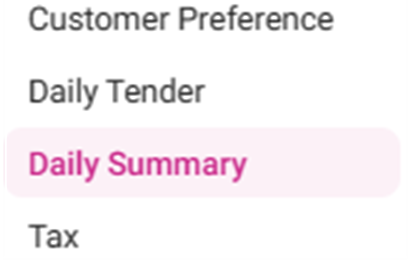
The Daily Summary page displays sales revenue information, with a table broken down by Date, Department and Revenue sources.
Select the Department, Tax, and Time Period.

- Department: Select a Department from the dropdown (from the Departments set in Back Office), or All Departments. You can scroll up/down to find the Department.
- Tax: Select the Tax(es) (one or more, set in Back Office) from the dropdown.
Once the Department, Tax(es), and Time Period have been selected - click Apply.
Daily Summary Table
The Daily Summary table is populated, containing the below columns:

- Date: The Date of the sales activity (DD-MMM-YYYY format).
- G/L Department: The Department receiving the amounts in sales.
- Gross Sales: The amount (in currency) of Gross Sales for the department.
- Comps: The amount (in currency) of any Comp discounts from the department.
- Promo: The amount (in currency) of any Promo discounts from the department.
- Loyalty: The amount (in currency) of any Loyalty funds from the department.
- Donation: The amount (in currency) of any Donations from the department.
- Net Sales: The amount (in currency) of Net Sales (Gross Sales – (Comp + Promo + Loyalty + Donation)) for the department.
- Tax: The amount (in currency) of Taxes collected for the department.
- Grand Sales: The Total amount (in currency) of Net Sales + Tax for the department.
Summary Table
Appears below the table, on the left side.
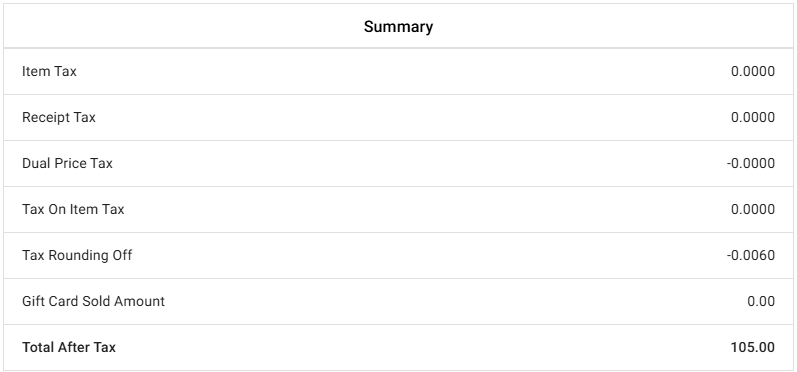
- Item Tax: The total amount (in currency) of Item tax collected for the day.
- Check Tax: The total amount (in currency) of Check tax for the day.
- Tax On Item Tax: The total amount (in currency) of Tax on item tax for the day.
- Tax Rounding Off: The total amount (in currency) of Tax rounding off for the day.
- Gift Card Sold Amount: Gift card sold amount for the day.
- Total After Tax: The total amount (in currency) of after Taxes are applied.
Deposits Table
Appears below the Overview table, on the right side.
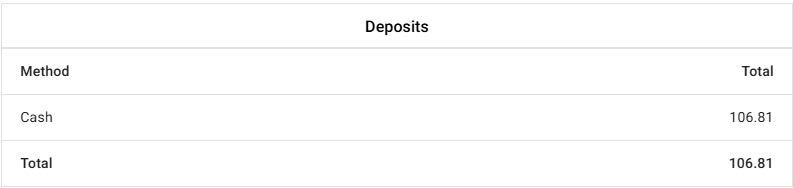
- Method: The method of payment(s) deposited for the day.
- Total: The sum of all deposits.
Credit Card Summary Table
Appears at the bottom.

- Card Type: The Card used for sales transactions.
- Amount: The amount (in currency) of sales from the Card Type.
- Total: The total amount (in currency) of sales for the Card Type.
- Credits: The total amount of Credits generated for the Card Type.
- Net: The total Net Amount of sales for the Card Type.
- Total: Sum of all the values in all columns.