Retail Back Office: Enterprise Settings - Account
Navigation: Sign into the Back Office. On the left-side Navigation Panel, click Enterprise, then click Settings.
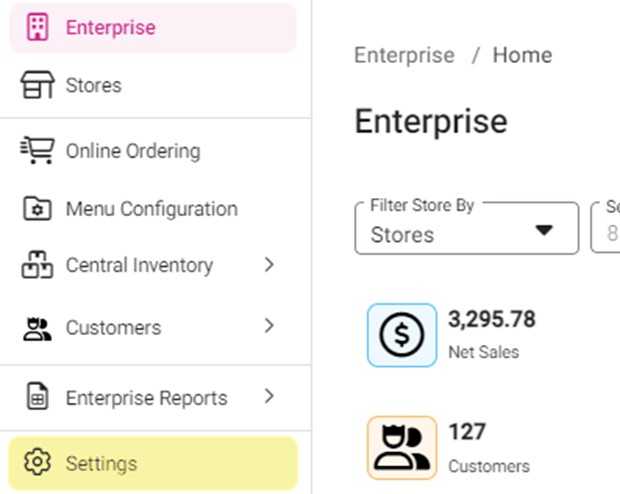
On the Settings page: under the Enterprise Settings section:
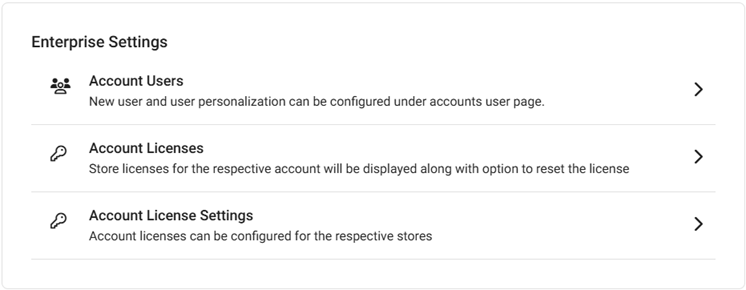
- Account Users – Additional users can be granted access to all Stores and Enterprise settings.
- Account Licenses – Store Licenses for the respective account will be displayed along with option to reset the Licenses.
- Account License Settings – Store licenses on the Account can have specific functionality enabled or disabled.
Account Users
Displays a table containing the Users on this Account with the following columns:
- Image - An uploaded photo image of the user.
- First Name - The first name of the user.
- Last Name - The last name of the user.
- Email Id - The contact email address of the user (serves as the default for notifications).
- Phone Number - The contact phone number of the user.
- Central Warehouse - Displays whether or not the user has access to Central Warehouse.
- Actions - Options for Edit, Delete and Reset Password.
Create or Update an Account User
- To create a new User on the Account, click + New Account User at the top-right. The New Account User page appears.
- To Edit an existing User, click the corresponding three dots ••• then Edit. The Update Account User page appears.
- On the New / Update Account User screen:
- General
- Enter the First and Last Names (mandatory).
- Optional: Select the Gender from the dropdown, then the Date Of Birth (calendar).
- Enter the Phone Number (optional), then the Email Address (mandatory).
- Select the Language from the dropdown, then select the Date Of Joining (optional).
- Optional: Add a Photo by clicking the Upload New Image button and selecting the photo.
- Password - Create a Password for the user, then re-enter it in Confirm Password.
- A Password must Include: between 6 and 12 characters, at least 1 uppercase and 1 lowercase character, 1 number, and 1 special character.
- Note: If you need to reset a User’s Password, click the corresponding ••• for the Account User, then click Reset Password. After entering the New Password and re-entering in Confirm Password, click Authenticate.
- Store Access
- Select the Store(s) the User will have access to in the dropdown.
- Select whether the User should have a POS Login. If YES, enter their unique PIN Number (minimum 4 digits) and what will be their Initial Screen (the first screen they see upon logging in to the POS).
- For each Store: select whether the User will be Required to Clock In, then select the Roles they’ll be able to Clock In as from the dropdown.
- Address - Enter the Address: Line 1 (Address Number and Street), Apt, Suite, etc. (optional), City, State, and Zip Code.
- Enterprise Access – Select whether to grant the User access to Central Warehouses. If Yes, then for each Warehouse slide the corresponding toggle to the right (on) to Allow Access. To select all the Warehouses, click Select All.
Delete a User
- Identify the User to delete. Under the Actions column click the corresponding three dots (•••) icon then select Delete.
- On the Delete pop-up that appears: select Delete to confirm deleting the User.
- If Cancel or X Close are clicked, you're returned to the Account Users page without deleting the User.
- You're returned to the main Account Users page, where the User has been removed and the 'User Inactivated Successfully' confirmation message appears at the upper-right.
Account Licenses
You can view the status of each License on the Account. The page displays a table with the following columns:

- The ID of the Node where the license is being used.
- The Store where the license is logged in.
- The Type of Device.
- The unique Device Name.
- Times and Date stamps for the most recent Login, Accessing, and Sync.
- You can sign out a License by clicking Sign Out.
Account License Settings
Set the functionality of Licenses when logged in to a Store. There are toggles available for each functionality for your Account, with the maximum number of Stores allowed for the functionality above. After updating toggle settings, click Save at the upper-right.