Retail Back Office: Enterprise Settings - Royalty/Franchise
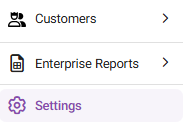
Navigation: Sign into the Back Office. On the left-side Navigation Panel, click Enterprise, then click Settings.
The Royalty / Franchise section displays the following options
Royalty/Franchise
The page displays a table with a listing of all Stores available under the Enterprise.
Activate or Update Royalty
- Identify the Store to activate Royalty for, then click the corresponding Activate Royalty toggle so that it’s to the right (On).
- To Update an existing Royalty: identify a Store with an existing Royalty to update, then under Actions click the pencil icon (Edit).
- The New/Update Royalty/Franchise pane appears.
- Under Bank Details
- Enter the Bank Name. Letters, numbers and special characters allowed, up to 50 characters.
- Enter the Routing Number. It's a unique, 9-digit number that functions as an address for your bank.
- Enter the Account Number where the Royalties will be paid. Only numbers allowed and max of 25 digits.
- Under Set Percentage
- Click + Add Percentage to add a row to the table.
- Enter the charge's Name.
- Set the Percentage of the charge.
- For Default: Only 1 entry can be set as Default.
- When ready, click Save (or Update) at the bottom-right. You're returned to the main Royalty/Franchise screen and a confirmation message appears at the upper-right.
Tip: you can view all currently Active Royalties by sorting with the Activate Royalty column in descending order (click the header until the adjacent arrow is facing downward. Activated Royalties will have the toggle turned on and the corresponding Actions field will have a pencil (Edit) button.

ACH Settings
- File Header
- Fill in the following fields, all of which are mandatory:
- Destination Name: Enter the destination bank name. Letters, numbers and special characters allowed up to 50 characters.
- Destination Routing Number: A unique, 9-digit number that functions as an address for your bank.
- Immediate Origin Name: Enter the origin bank name. Letters, numbers and special characters allowed up to 50 characters.
- Immediate Origin Number: You can enter their origin number. Up to a 9-digit number.
- Batch Header
- Fill in the following fields, all of which (except Company Discretionary Data) are mandatory:
- Company Name: You can give company name. Allows only alphabets. Restrict up to 50 characters.
- Company Entry Description: You can enter entry description. It will allow alphabets, special character and numeric values. Restrict up to 25 characters.
- Effective Entry Date: In date field, Calendar view icon should place on right side corner. When user chooses date from the calendar, It will be effective from that date.
- Company Discretionary Data: Discretionary data refers to information that will appear on the employee's bank statements. This field is optional, and it is for internal use only. Allows alphanumeric and special characters. Restrict up to 100 characters.
- Company ID (Identification) Number: You can give Identification number. Allows only numeric values and restrict up to 15 digits. Warning message "Company Identification Number should not be more than 10" will show while user gave more than 10 digits.
- Originating DFI Identification: The 8 digit routing number of the institution that originated the ACH entry. Allows only numeric values and restrict up to 15 digits. Warning message "Originating DFI Identification should not be more than 8" will show while user gave more than 8 digits.
- When ready click Save/Update.