Retail Back Office: Marketing - Settings
Navigation: Sign into the Back Office for your Retail Store, then select Marketing > Settings
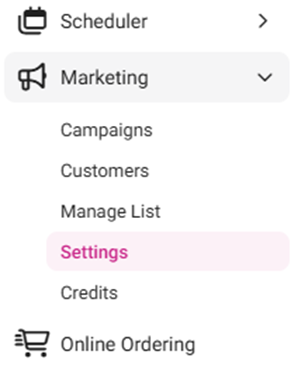
The Settings page contains options to quantify the thresholds for types of Customers. Enter the amount for each field, or use ▲/▼ to increase/decrease the value.
New: Customers who have signed up as Members of your loyalty program within the last entered number of Days.
Recurring: Members who have ordered from your store within the last entered number of Days.
At Risk: Members who haven’t visited your business within the last entered number of Days.
VIP: Recurring customers with one or more Life Days.
Life Points are a total accumulation of all earned Loyalty points
When satisfied with all values, click Save at the upper-right. The settings will be saved and the ‘Settings Saved Successfully’ confirmation banner appears.

Related Articles
Retail Back Office: Marketing - Customers
Navigation: Sign into the Back Office for your Retail Store, then select Marketing > Customers. The Customers page appears, displaying your customers’ details. Tiles appear at the top of the page, representing the Total number of Customers – then ...
Retail Back Office: Marketing - Campaigns
Navigation: Sign into the Back Office for your Retail Store, then select Marketing > Campaigns The Campaigns screen displays a table containing the created Marketing campaigns, with the following columns: Name: The name of the campaign. Created: The ...
Retail Back Office: Admin - Dashboard
Navigation: Log in to Dealer Admin, then select Dashboard. On the Dashboard, you will be able to view the tiles displaying amounts such as the number of Stores using types of plans Core/Basic, Pro, and Enterprise - as well as Sales data broken down ...
Back Office: Marketing Settings
Sign into the Back Office then select a Store. Onhe left-side Navigation Panel, select Marketing then Settings. The Settings page contains options to quantify the thresholds for types of Customers. Enter the number for each field, or use ▲/▼ to ...
Back Office: Marketing Customers
Sign into the Back Office then select a Store. On the left-side Navigation Panel, select Marketing then Customers. The Customers page appears, displaying your customers’ details. Tiles appear at the top of the page, representing the Total number of ...