Retail Back Office: Membership Reports
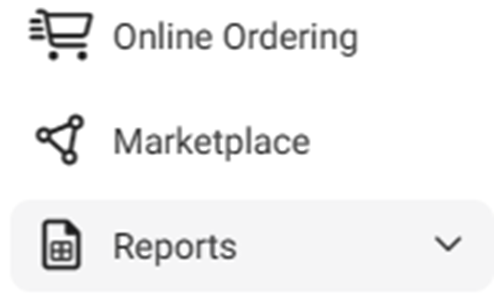
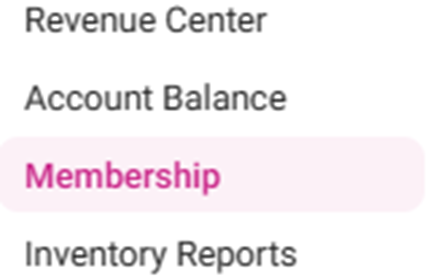
Navigation: Log into the Back Office for your Retail Store, then select Reports > Membership.
The Membership report page contains the following tab options:
Membership Summary
Membership Statement
Membership Summary
Displays the details of a Customer’s activity when using a Membership plan.
- Select from the following fields then Time Period (month) and Year (both appear when Membership Plan is selected) then click Apply.
- Customer: Select a Customer’s name (based on the customers with membership plans). Use Search to find a customer more easily.
- Membership Plan: Select a Plan name (based on the existing plans created in Back Office). Search to more easily find a plan.
- Time Period: Appears when a Membership Plan is selected, and options vary based on the selected Plan (broken down by Quarterly, Half Yearly, or Monthly).
- Year: Select from the dropdown. Search to more quickly find the year.
- Click Apply. The table with the below columns is populated:
- Customer Name: The Name of the Customer (selected from the Customer dropdown).
- Membership Plan: The Name of the Plan (selected from the Membership Plan dropdown).
- Membership ID: This displays the ID of the membership plan.
- Allowance: This column displays allowance per period.
- Allowance DED: This column displays quarterly allowance.
- Overdraft Due: Any overdraft amount that’s currently due.
- Refund: This column shows refund amount for membership plan.
- There will be columns based on the selections (The above example is for the months Apr, May, and Jun).
- Total Transaction: This shows the total amount of transactions for a period.
- Pending Allowance: Total amount that is not deducted from the allowance.
Membership Statement
Displays the details of a Customer’s activity when using a Membership plan.
- Select from the following fields then Time Period (month) and Year (both appear when Membership Plan is selected) then click Apply.
- Customer: Select a Customer’s name (based on the customers with membership plans). Use Search to find a customer more easily.
- Membership Plan: Select a Plan name (based on the existing plans created in Back Office). Search to more easily find a plan.
- Time Period: Appears when a Membership Plan is selected, and options vary based on the selected Plan (broken down by Quarterly, Half Yearly, or Monthly).
- Year: Select from the dropdown. Search to more quickly find the year.
- Click Apply. The table with the below columns is populated:
- Customer Name: The Name of the Customer (selected from the Customer dropdown).
- Membership Plan: The Name of the Plan (selected from the Membership Plan dropdown).
- Membership ID: This displays the ID of the membership plan.
- Allowance: This column displays allowance per period.
- Allowance DED: This column displays quarterly allowance.
- Overdraft Due: Any overdraft amount that’s currently due.
- Refund: This column shows refund amount for membership plan.
- There will be columns based on the selections (The above example is for the months Apr, May, and Jun).
- Total Transaction: This shows the total amount of transactions for a period.
- Pending Allowance: Total amount that is not deducted from the allowance.