Retail Back Office: Store Inventory Settings
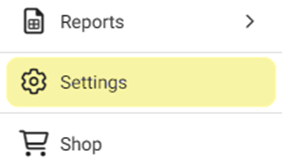
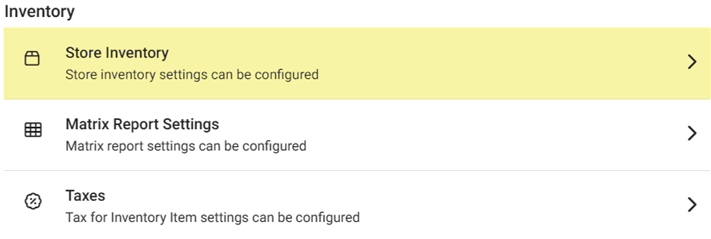
Navigation: Sign into the Back Office for your Retail Store. Click Settings, then on the Settings page under Inventory select Store Inventory.
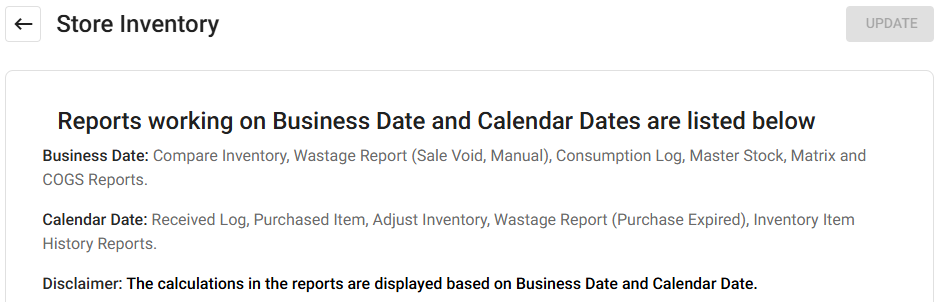
The Store Inventory screen displays settings for the store's inventory tracking and notifications. At the top is a listing of the reports utilizing the Business Date and Calendar Date.
- Business Date – Select the date (calendar view) when Inventory Business Date reports and operations will run.
- Impact in Cost Price Changes in Retail Item – Select Selling Price or Markup Percentage.
- Selling Price – Makes changes in selling prices which impact retail items.
- Markup Percentage - Makes changes to percentages which impact retail items.
- Email Summary Alert – If Enabled (YES), a low stock notification will be sent to the entered Email Address(es). To add multiple Addresses, put a comma (,) between them. If Disabled (NO), no notification will be sent.
- Vendor's CC – If Enabled (YES), a vendor copy of the low stock notification will be sent to the entered Email Address(es). To add multiple Addresses, put a comma (,) between them. If Disabled (NO), no notification will be sent.
- Enabled Summary Alert – If Enabled (YES), you’ll be alerted when a Summary is available. If Disabled (NO), there will be no alert.
- Enabled Stock Expired Alert – If Enabled (YES), you’ll be alerted when your stock is close to expiration. If Disabled (NO), there will be no low stock alert.
- Auto Remove Expired Stock – If Enabled (YES), expired stock will be removed automatically. If Disabled (NO), it will not be auto-removed.
- Click Update at the upper-right to save any updates to the Store Inventory page. A spinning circle animation will appear in the middle of the screen, for a moment, then the pink confirmation banner ‘Store Inventory Settings Updated Successfully’ appears.