Back Office: Batch Report
- Sign into the Back Office and select a Store.
- On the left-side Navigation Panel, click Reports then Batch.
- The Batch page displays Batch Report activity based on the following selections:

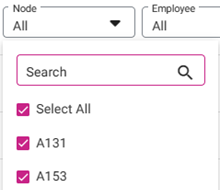
- Node: Select from the list of registered POS Nodes (one or more or Select All). A box filled in pink with a check mark means it’s selected, and a blank box is unselected.
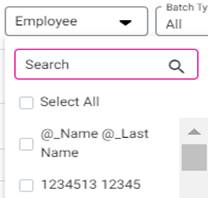
- Employee: Select from the list of Employees (one or more, or Select All). A box filled in pink with a check mark means it’s selected, and a blank box is unselected.
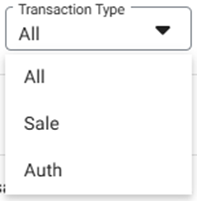
- Transaction Type: Select from the list of types of transactions (All, Sale, or Auth).
- Note: The Transaction Type dropdown appears when the Show Sale Type Transaction in Batch Report toggle is Enabled (YES) under Settings > Batch > Batch Settings.
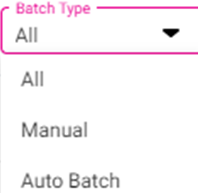
- Batch Type: Select the type of Batch (Manual (activated from Node), Auto Batch (set in Back Office), or All).
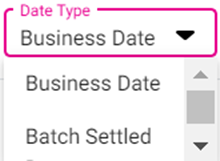
- Data Type: Select Business Date or Batch Date.
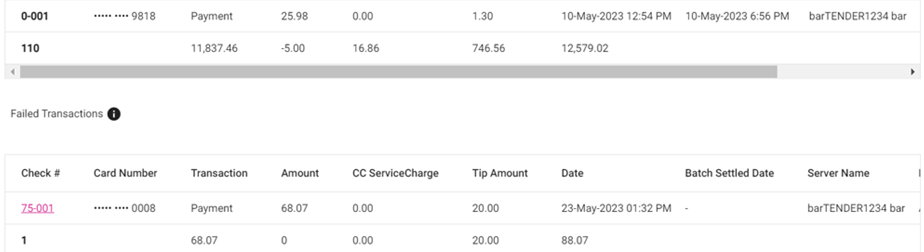
- When Apply is clicked, a table with the below columns is populated:
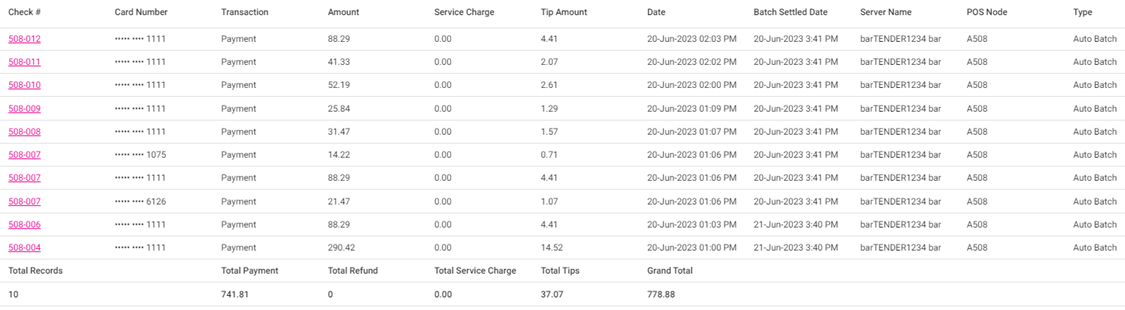
- Check: Node Number and Check Number (NodeNumber-CheckNumber format).
- Card Number: The card number used for the payment (some will be masked, depending on the payment gateway).
- Transaction: The type of transaction (Payment, Refund, etc.).
- Amount: The sale amount, in currency with up to two decimal points.
- Service Charge: Service charge for the sale (per Back Office), with up to 2 decimal points.
- Tip Amount: The tip amount, in currency with up to two decimal points.
- Date: The date and time of the sale (DD-MMM-YYYY HH:MM AM/PM format).
- Batch Settled Date: The date and time the batch was settled (DD-MMM-YYYY HH:MM AM/PM format).
- Server Name: The name of the server on the sale (the user logged in on POS).
- POS Node: The node the sale was conducted on.
- Type: The type of batch (Auto or Manual).
- Total Records: Total number of all the checks.
- Total Payment: Total transactions done for the batch, with up to 2 decimal points.
- Total Refund: Sum of all the refund values.
- Total service charge: Sum of all the service charge values.
- Total Tips: Sum of all the tip values for the batch.
- Grand Total: Sum of all the transaction values.
- For any Failed (unbatched) Transactions a table appears below the Batch table. Due to it containing unbatched transactions, they won’t have a Batch Settled Date: