POS: Evertec Payments
Configuration in Back Office Admin
On the Admin page, enable the Evertec toggle.
Configuration in Back Office
Payment Method Settings
Navigation: Log into BO, select a Store, then select Settings > Payments > Payment Method
- For more information on Payment Methods, see the Payment Methods Settings article.
- If the Evertec toggle in Admin is enabled, then Evertec will appear as a Payment Type option when creating or updating a Payment Method.
- If disabled, it won't appear as an option.
- When ready, click Save (or Update) at the bottom left of the Payment Method pane.
EMV Settings
Navigation: Log into BO, select a Store, then select Settings > Payments > EMV Settings
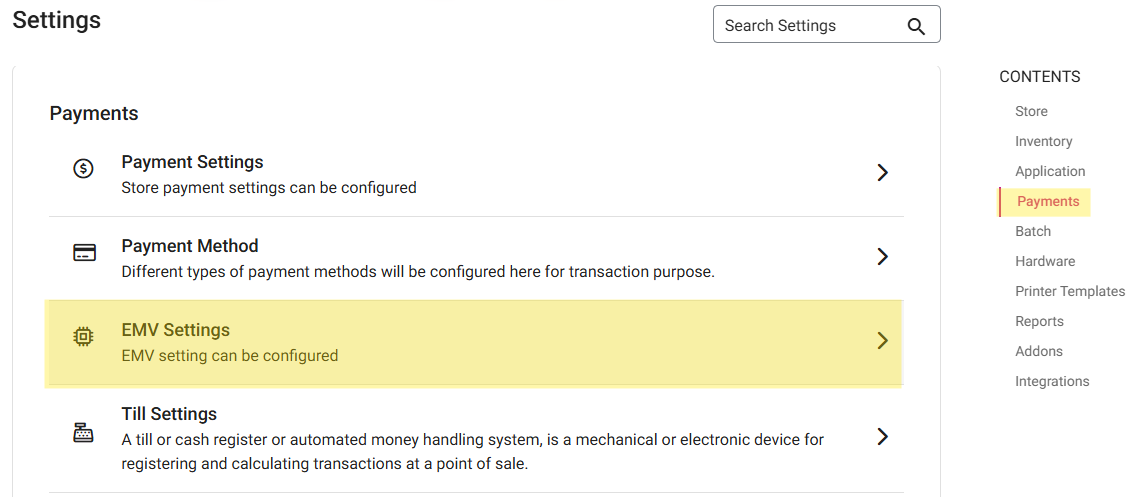
- For more information on Back Office EMV Settings, see the EMV Settings article.
- When creating new EMV Settings for an Evertec payment, be sure to select the Type as Evertec.
Batch Settings
- For more information on Back Office Batch Settings, see the Batch Settings article.
- For Evertec, be sure to select the Default Batch Payment as Evertec.
Receipt
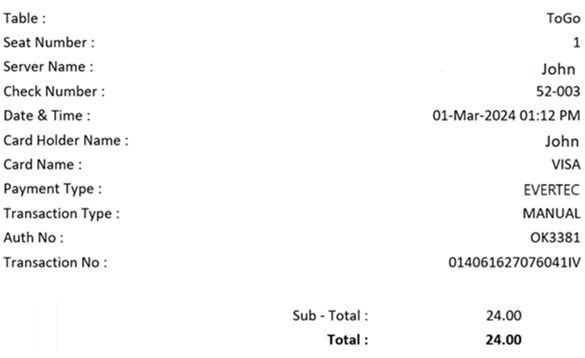
Note: The below example Receipt is supported by Star and Epson printers and for both Text and Image. The following fields will be added to the receipt: Table & Seat Number, Server Name, Check Number, Transaction Type, Transaction Total, Transaction Currency, Transaction Number, Payment Type, Check Number, Masked Card Number, Date & Time, Card Holder Name, Card Name, Payment Type, and Auth No.
POS
Ensure the following:
- The Payment Type is enabled in the Store's Admin Settings.
- The Evertec device is connected.
Device Selection
- Navigate to Hardware Settings, then the Card Reader tab.
- All connected Devices will be visible. Select the required device to connect as per IP Address.
To Create a Sale
- Select the Payment option. User are taken to the Payment screen, where all the Payment options (enabled in Back Office (BO) settings) are visible.
- Select Evertec to perform payment through the device.
- If the Tip screen is enabled, customers are redirected to it to provide a Tip in the form of percentage (%), Custom amount or proceed with No Tip.
- Below the Tip section: the Signature line will be available (based on settings in BO).
- After Tip selection and Signature, there will be three payment options - Cancel, Manual, Process - at the bottom.
- If Process Payment is selected, the Customer can tap or swipe or insert their Card into the device and payment will be completed.
- If Manual is selected:
- The Card screen appears, which displays 4 options: Manual, Clear, Process EMV, and Cancel - along with the Balance Amount to be paid.
- You can manually enter the Card details then select Process EMV - or the Customer can swipe or tap or insert the Card (EMV).
- If no device is connected, the ‘No Evertec connected to the device’ message will be displayed.
- Once the Card is Swiped/tapped/inserted, a loader with the message 'Connecting to Processor' will be displayed.
- After payment completion, the Show Digital Receipt screen appears (if enabled in BO).
- On the Digital Receipt screen: the user can choose whether the Receipt / Bill needs to be sent via SMS, Email or Print. User can choose any one of the options then press Send Receipt.
- After choosing the Receipt option then pressing Send Receipt, it will be sent based on the selection then you are returned to the Order screen.
Auth
When creating Payment Method such as Evertec:
- When the Sale is placed, the Payment will go to the Batch screen where the Tip can be adjusted.
- When Batch Submit is clicked, all Payments will be processed.
- In the Payment section, Evertec is displayed when the Payment Type is enabled for the Store.
- After selecting Evertec as the Payment Method, the Tip screen (if enabled) appears where the Tip and Signature can be provided, then click Process Payment.
- The card can be tap or swipe or inserted into the device, and then Payment will be completed.
- If Manual is selected: the Card screen appears, displaying 4 options (Cancel, Manual, Clear, and Process) along with the Amount to be paid.
- To complete the Payment: enter the Card details, or swipe/insert the Card (EMV) to complete the Payment.
Payment Scenarios
- Tap - (Default) The card can be tapped on the device, and payment will start processing. If this fails, refer to the Swipe method.
- Swipe - The card can be swiped in the device, and then payment will start processing.
- Manual Card Details - After manually entering the card details, select Process. The payment will be processed on the card.
- Insert - Process is selected and the card is inserted into the device. The payment will be processed on the card.
Payment Success
Process is selected, the system will send response to the server, server will hit back whether the payment is processed or not after the response.
- If processed, the payment will be added to the success payment (indicated with a check mark).
- If not processed, processing request will be cancelled, and you are returned to the Card screen.
Payment Failure
Process is selected.
- If there is No balance on the Card - or the device is busy - the payment will not be processed on the terminal and error response will be sent back to the POS. The Payment will be considered as the failure payment and error message received from the terminal will be displayed in POS.
- If there is network failure, it will be considered an offline payment.
Time Out
Process is selected. Payment processing started but the card wasn't inserted or swiped. The system will check for time out period (1 min), and after that period the
'Time Out' error message appears.
'Time Out' error message appears.
Void
The payment can be voided after it's completed.
- Delete the payment on the payment screen, and the full payment will be voided.
- A partial void is not possible. All payments on the check must be deleted to void.
- After closing the check, it will be moved to the closed tab. Reopen the check then select void. The Payment page appears, and the message ‘Payment made on this check, kindly delete the payment to void the menu item’ appears.
- When Manual submit is enabled: the check will not close and the system will redirect to the Payment page. From there you can delete the payment and void the check.
Refund
- A sale is placed and close day is performed, but refunding a payment is needed.
- Navigate to the Refund screen, where all the Checks placed on the selected Date appear.
Refund With Reference
- Select the Check to refund and select Refund Check..
- The Refund popup that appears, displays all the payment types, including Evertec - as well as the Amount to be refunded.
- Provide the Reason to select the payment type.
- If attempting to select a payment type, the pop-up 'Provide reason for Refund' appears.
- After selecting the payment type, the message 'Do you want to refund?' appears, with Yes and No options.
- If yes, the message 'Refund Success' appears.
- If no, stays on same screen.
- After conducting a refund: if Refund Check is selected the message 'Check is already refunded' appears.
Refund Without Reference
When Refund Without Reference is selected:
- The Refund popup appears, which displays all the payment types including Evertec.
- Provide the Reason to select the payment type.
- If attempting to select a payment type, the pop-up 'Provide reason for Refund' appears.
- The Amount to be refunded will not appear. You must manually enter the Amount.
- After selecting the payment type, the message 'Do you want to refund? Confirm' appears, with Yes and No options.
- If yes
- If cash, the 'Refund Success' pop up will appear.
- If card payment such as Evertec, the Card screen appears.
- Manually enter the details (or swipe or tap or insert the card [EMV]).
- The Amount will be refunded to the card and the 'Refund Success' pop up will appear.
- If no, it remains on the same screen.
Refund Menu Item
When Refund Menu Item is selected:
- Select the Item which the customer wants a refund on the amount.
- Select Refund Check or Refund Item button.
- After selecting Menu Item, the Refund pop-up appears.
- To select the Payment Type, you must first provide a Reason. Otherwise, the message ‘Provide reason for Refund’ appears.
- The Amount to be refunded will be displayed on the pop-up.
- After providing the Reason and the payment method Evertec is selected, the message ‘Do you want to refund? Confirm’ appears with Yes and No options.
- If Yes is selected, the Refund pop up will be closed and a success message will be displayed indicating the completion of the refund process.
- If No is selected, you revert to the previous screen.
Batch
You can complete the Auth transaction by clicking the Submit Batch button.
- On the Batch screen, all the successful transactions are displayed and Tips for the transaction can be changed or applied on the batch screen before batching.
- Evertec payments should be visible on the BO Batch screen for batching.
- When the value is chosen in the 'Batch submit device' in BO and you attempt to submit the Evertec batch from the same node, you will be able to submit the batch without any intervention.
Auto Batch
- The Auto Batch time is set in BO
- All the successful payments will process, including offline transactions, on the Batch screen.
- Auto Batch is available for Evertec payments.
Manual Batch
- Click Submit Batch.
- Under Default Batch Payment, the Evertec option is included only when the Evertec Payment toggle is enabled in Admin.
- You can select Evertec as the Default Batch Payment in BO.
- On the Batch screen, the Evertec related payments appear along with Clover as the Device.
- If the Batch is processing, the Submit button at the bottom of the screen will be disabled and the loading graphic will be displayed until the Batch completes.
- After initiating a batch, a Tip cannot be applied.
Tip Adjustment
You can adjust the tips of authorized payments on the Batch screen, which displays all transactions.
- Select a Check No. and the Tip pop-up appears.
- On the Tip screen, adjust the Tip on the payment then press Continue.
- The adjusted Tip will be applied to the Check.
- Tips on Cash payments can be adjusted by using the Adjust option on the Payment screen.
- For a Check: if partial payment was made using Evertec payments then on the Payment screen you can adjust the Tip of the partial payment by selecting the payment then selecting the Adjust option will be used to adjust the Tip.
- On the Payment screen: when the payment status is selected the Adjust option will be changed into Tip which will be used to change the Tip for the Payment. Any cash payments can be adjusted by using the Adjust option on the Payment screen.
Manual Submit
Manual Submit functionality applies to Evertec payments.
- Under Payment Settings, the Manual Submit for Credit Card toggle will be available.
- In POS, Manual submit will be available for Table and Bar Tab types.
- If the Manual Submit for Credit Card toggle is enabled: after completing the credit card transaction, the system will allow you to manually submit the Order to complete.
- If the toggle is Disabled, the system will work as usual.
- If Dine In or Bar Tab is selected as the Service Type and Evertec is selected as the payment: the Tip screen appears. Once the Tip is selected, the payment can be made.
- Enter the credit card details manually, or by Swiping or Inserting the card using the payment device.
- After processing the payment, the CC Receipt screen appears.
- If Send Receipt is selected, the CC copy and Merchant copy will be generated.
- If No Thanks is selected, the receipt will not be generated.
- After selecting No Thanks or Send Receipt, the Payment screen appears.
- On the Payment screen: when the Payment Status is clicked, the Adjust option will be changed into Tip which is used to change the Tip amount on the payment.
- When Tip is selected, the pop-up appears where you can update the Tip on the payment.
- Press the Submit button to close the Check, and the Digital Receipt screen (where the Receipt will be generated) appears. The updated Tip will be reflected on the Receipt.