POS: Operation - Sync Back Office

POS: Operation - Sync Back Office


Overview


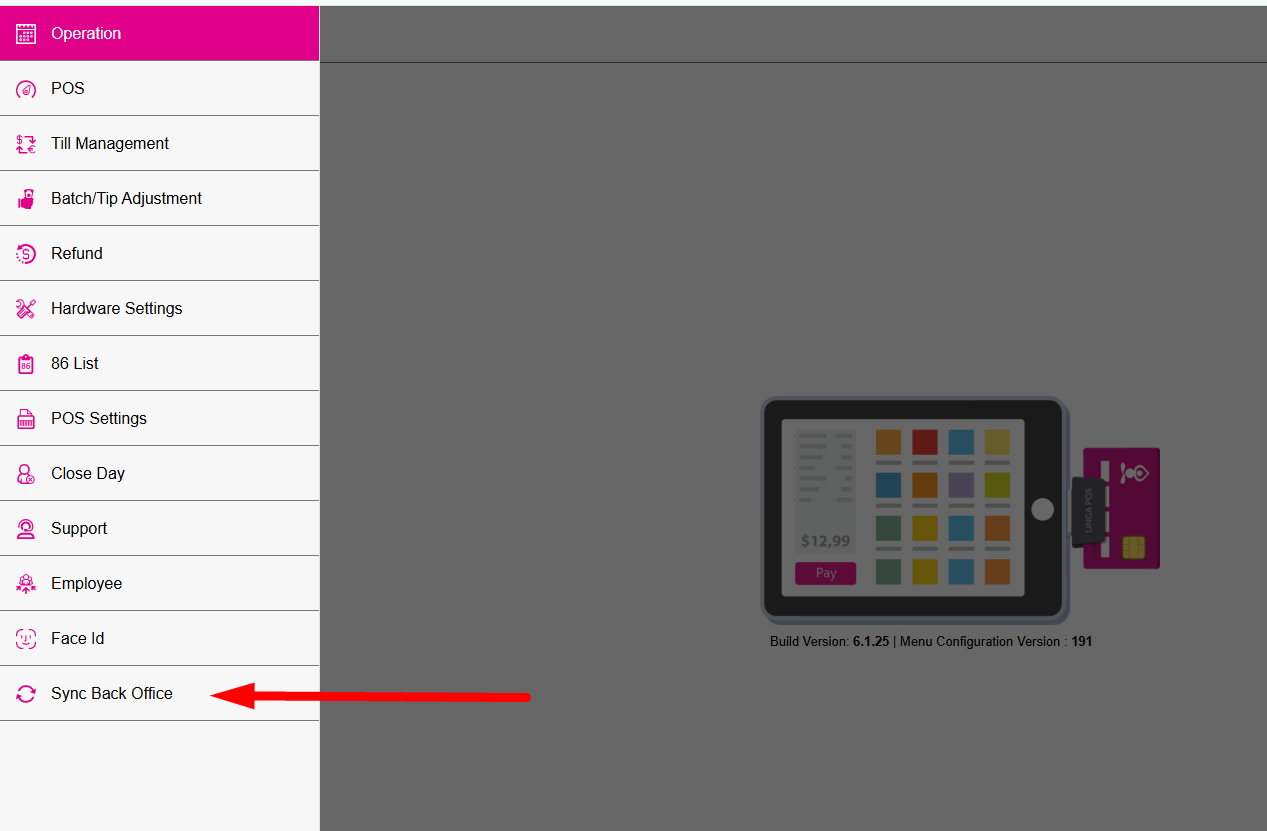
When a Store Admin user logged into Back Office has made changes then clicks Save and Publishthe respective changes will be applied to the POS automatically after a short period. To see the changes immediately, use the Sync Back Office option in the POS.

The Sync button (green circular arrows icon) can be found in multiple places in the POS:
  1. Login Screen - Located at the top right, labeled Sync with the green circular arrows icon.
  2. Order Screen - Located at the bottom left, appearing as the same green circular arrows icon.
  3. Operations Menu - At the bottom of the menu, labeled Sync Back Office.

After pressing Sync Back Office, the confirmation message 'Synced successfully' appears at the upper-right.


Roles

Navigation: Log into BO for your Store, then select User Management > Roles

For more information on creating a Role which can perform Back Office tasks, see the Back Office Roles Knowledge Article.
    • Related Articles

    • POS: Operation - POS Settings

      POS Settings Navigation: Log into POS, then select Operation > POS Settings Note: Only Employees with the proper Role and Permission settings have access to POS Settings. Till Settings This section is used to define the behavior of Till Management. ...
    • POS: Operation - Support

      The Support Operation screen is broken down into two tabs: Download The Download tab allows you to Download the latest version of the OS. Click Download, and the Download screen appears, with a history of Release Versions available. Status The Status ...
    • Back Office: User Management - Creating a New User

      Sign into the Back Office. On the left-side Navigation Panel, click User Management then Users. On the Users screen: click + New User. The New User screen appears. When adding or editing a User, the following fields will be Mandatory: Name, Last ...
    • Back Office: Sync Inventory

      Sign into the Back Office then select a Store. On the left-side Navigation Panel, click Inventory then Sync Inventory. The Sync Inventory page appears, highlighting the benefits available to a fully synced inventory: Create purchase orders, Receive ...
    • Back Office: Enterprise - Sync Inventory

      Sign into the Back Office. On the left-side Navigation Panel, click Enterprise. On the Enterprise page, click Central Inventory then select Sync Inventory. The Sync Inventory page appears, which highlights the benefits that come with a fully synced ...