Retail Back Office: Enterprise - Sync Inventory
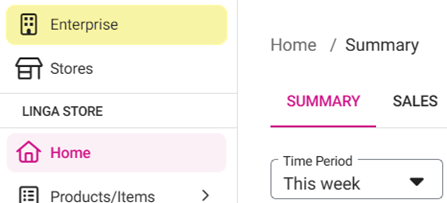
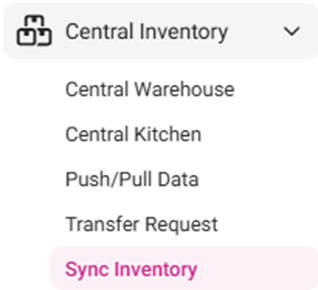
Navigation: Sign into the Back Office. On the left-side Navigation Panel, click Enterprise. On the Enterprise page, click Central Inventory then select Sync Inventory.
The Sync Inventory page appears, which highlights the benefits that come with a fully synced inventory:
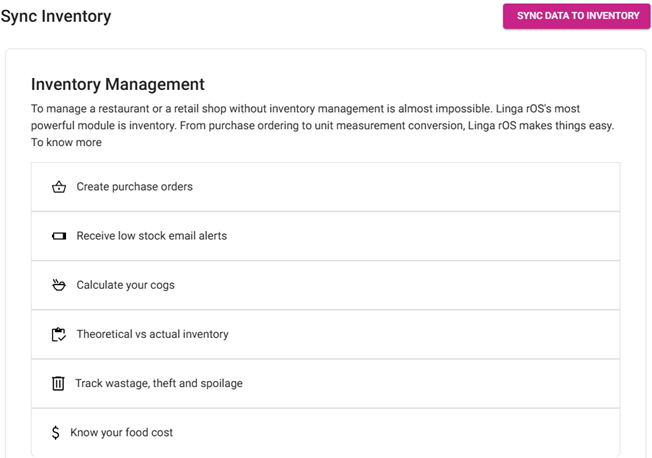
- Create purchase orders: A PO can be created under the Purchase Order screen.
- Receive low stock email alerts: The low stock alert email will be sent to the registered email.
- Calculate your COGS: The Cost Of Goods Sold (COGS) will be calculated and will be reflected in Inventory reports.
- Track wastage, theft & spoilage: The user can view details about the wastage inventory items in wastage Reports.
- Know your food cost: The price value of the food will be displayed along with Menu Items.
- Click Sync Data To Inventory.
- The ‘Stay Calm, Authenticating…’ banner appears at the upper-right while syncing occurs.
- Once complete the ‘Inventory synced successfully’ confirmation banner appears.