Retail POS: Operation - Support

Retail POS: Operation - Support


In POS, select Operation then Support. The Support Operation screen appears. It is broken down by the Download and Status tabs.


Download Tab

The latest version of the POS is available for download via the Download button.


If you click the Download button, the 'Reload site?' pop-up appears which indicates that there are unsaved changes to the POS, which could be lost if the site is reloaded. You are provided with two options to proceed:
  1. Reload - Reload the site and return to the login screen.
  2. Cancel - Cancel the action and remain on the current page.


Status Tab

Online vs Offline

Displays the status of various connectivity and features: with Online marked with green
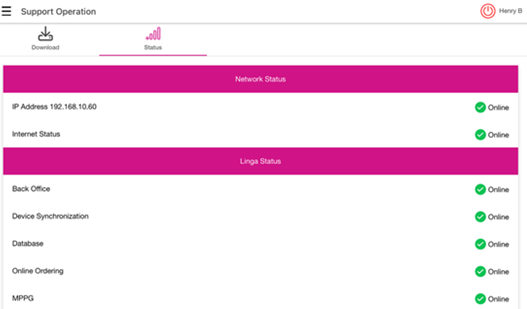

and 
Offline with red
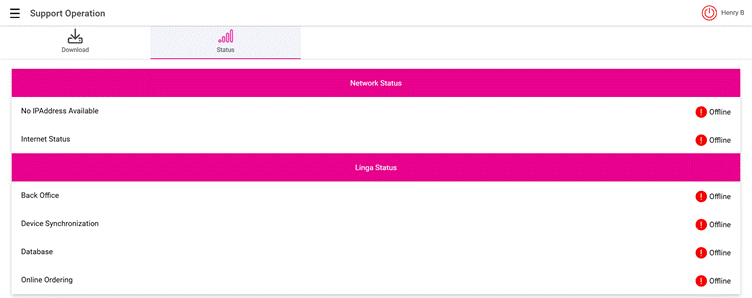
A screenshot of a computer

AI-generated content may be incorrect.

Network Status

  1. Displays the connectivity of the POS based on its IP Address [with number] and Internet Status.

Cloud POS Status

Displays the following features:
  1. Back Office: The status of Back Office connectivity.
  2. Device Synchronization: The status of all devices being synced.
  3. Database: The status of the database's connectivity.
  4. MPPG: The availability of MPPG payment (applies to Android, but not to Web) and will be dynamic based on the Store Settings.
    • Related Articles

    • Retail POS: Operation - POS Settings

      Navigation: Log into POS, then select Operation > POS Settings Note: Only Employees with the proper Role and Permission settings have access to POS Settings. Till Settings This section is used to define the behavior of Till Management. Back Office ...
    • POS: Operation - Support

      The Support Operation screen is broken down into two tabs: Download The Download tab allows you to Download the latest version of the OS. Click Download, and the Download screen appears, with a history of Release Versions available. Status The Status ...
    • POS: Operation - Support

      The Support Operation screen is broken down into two tabs: Download The Download tab allows you to Download the latest version of the OS. Click Download, and the Download screen appears, with a history of Release Versions available. Status The Status ...
    • Retail POS: Operation - POS

      Under the Operation menu, select POS The main screen appears - with the Void, Sale History, Park Sale, Retrieve Sale, Option, Print, Discover, Cash, Payment, and Log Off options appearing at the bottom.
    • Retail POS: Operation - Print Labels

      Setting Up a Label Printer Back Office Before printing labels in POS, you must first have Label Printers configured in Back Office. Navigation: Log into the Back Office for your Retail Store. Select Settings. Then under Hardware, select Label ...